
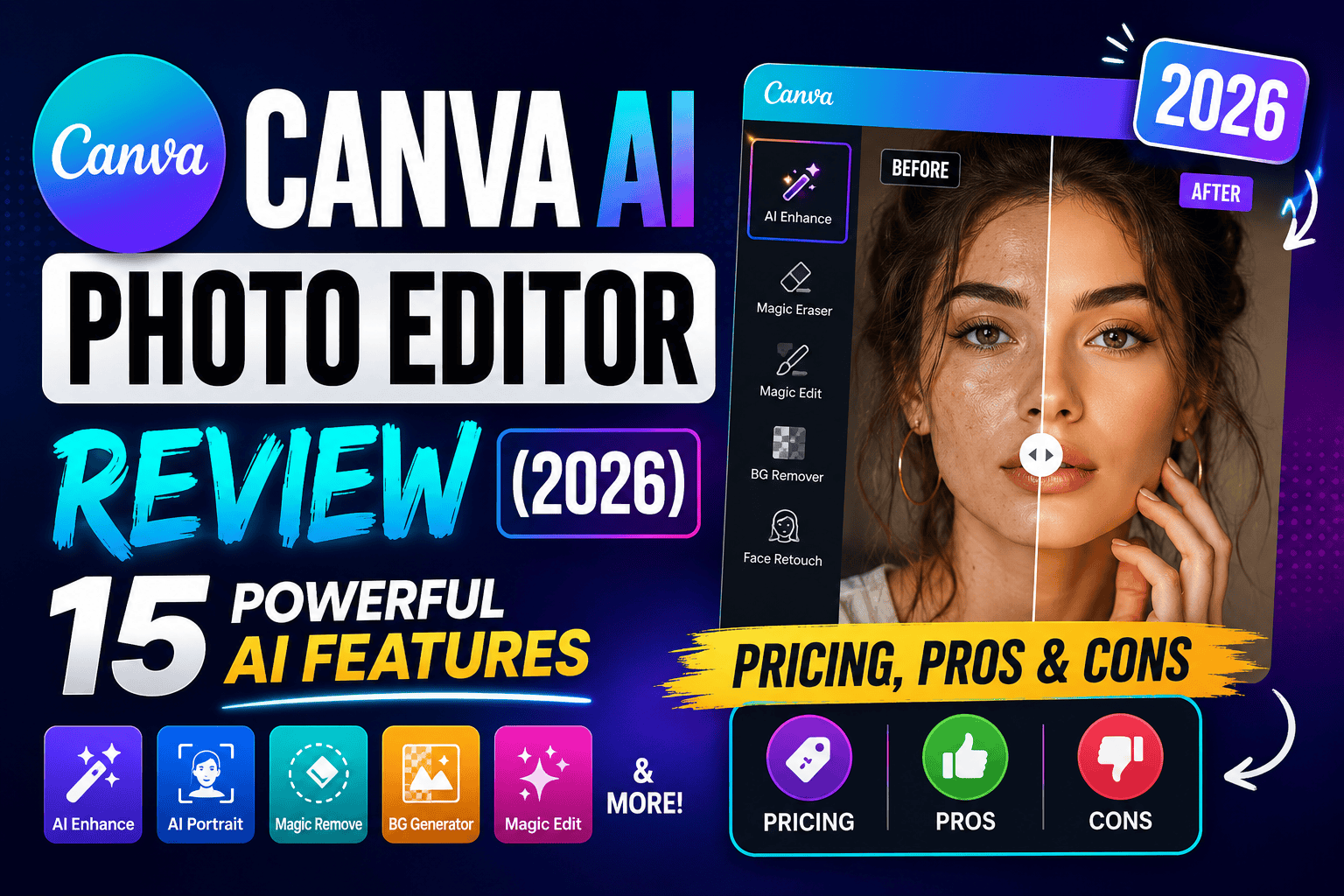
Discover our in-depth Canva AI Photo Editor Review for 2026. Explore AI features, pricing, Magic Studio, pros, cons, real-world performance, and whether Canva is worth using.
Table of Contents
Introduction
Artificial intelligence is rapidly transforming the way we create and edit images, and Canva AI Photo Editor is one of the most accessible platforms leading this shift. Once known primarily as an online graphic design tool, Canva now offers a powerful collection of AI-powered features that simplify photo editing, content creation, and visual storytelling for users of all skill levels.
Whether you’re a photographer enhancing images, a blogger creating featured graphics, a YouTuber designing thumbnails, an eCommerce seller preparing product photos, or a business owner building marketing materials, Canva AI promises to make professional-quality editing faster and easier. Features like Magic Studio, Magic Edit, Magic Eraser, AI Background Remover, Magic Expand, and the AI Image Generator help automate repetitive editing tasks while reducing the learning curve associated with traditional design software.
However, with so many AI-powered editing platforms now available—including Adobe Photoshop, Lightroom, Luminar Neo, and Topaz Photo AI—is Canva truly the right choice for your workflow? Can it deliver professional-quality results, or is it better suited to beginners and casual creators?
In this comprehensive Canva AI Photo Editor Review, we’ll examine every major feature, compare Canva with competing AI editing software, evaluate its pricing and performance, and share practical insights based on real-world creative workflows. By the end of this guide, you’ll have a clear understanding of whether Canva AI is the best AI photo editor for your needs in 2026.
About This Guide
At The Candid Shoot, we regularly evaluate AI-powered photography and editing software using practical, real-world workflows rather than relying solely on feature lists. Our reviews are designed to help photographers, content creators, bloggers, marketers, and small business owners choose tools that genuinely improve productivity and image quality.
For this Canva AI Photo Editor review, we’ve examined the platform’s latest AI capabilities—including Magic Studio, Magic Edit, Magic Eraser, AI Background Remover, and AI Image Generator—to determine how well they perform for everyday photo editing tasks. Whether you’re editing social media graphics, product photos, portraits, or marketing content, this guide will help you decide if Canva AI deserves a place in your workflow.
Quick Answer
If you’re looking for an AI-powered photo editor that’s easy to learn and packed with productivity features, Canva AI Photo Editor is one of the best choices available in 2026. Its Magic Studio tools simplify tasks such as background removal, object replacement, image expansion, AI image generation, and one-click design creation without requiring advanced editing skills.
While Canva isn’t a replacement for professional software like Photoshop for complex retouching, it excels at fast, user-friendly editing for content creators, bloggers, eCommerce businesses, educators, and social media managers. For users who value speed, simplicity, and cloud-based collaboration, Canva AI delivers an impressive balance of functionality and ease of use.
What is Canva AI Photo Editor?
Canva AI Photo Editor is an integrated suite of artificial intelligence tools within the Canva platform that helps users edit, enhance, and create images with minimal manual effort. Instead of requiring advanced photo editing knowledge, Canva uses AI to automate many common tasks, allowing users to produce polished visuals in just a few clicks.
The platform combines traditional design capabilities with AI-powered features under Magic Studio, enabling users to remove backgrounds, erase unwanted objects, expand images, generate new visuals from text prompts, improve image quality, and streamline repetitive editing tasks.
Because Canva is cloud-based, projects remain accessible across desktop and mobile devices, making it a popular choice for creators who work from multiple locations or collaborate with teams.
Unlike dedicated photography software focused primarily on RAW processing or detailed retouching, Canva AI emphasizes speed, accessibility, and versatility. This makes it especially appealing to users who regularly create content for websites, blogs, online stores, presentations, and social media.
Why Canva AI Has Become So Popular
Artificial intelligence has transformed the way creators approach photo editing. Instead of spending hours learning complex software or performing repetitive manual adjustments, users can now rely on AI to complete many tasks automatically.
Canva has embraced this shift by integrating practical AI tools directly into an interface that’s already familiar to millions of users. Rather than requiring separate plugins or additional software, features like Magic Edit, Magic Eraser, and AI Background Remover are built into the existing design workflow.
Several factors contribute to Canva AI’s popularity:
- Beginner-friendly interface with virtually no learning curve.
- Cloud-based editing accessible from any device.
- Integrated AI tools for editing and design.
- Large library of templates, graphics, and stock media.
- Collaboration features for teams and businesses.
- Fast export options for websites, social media, print, and marketing materials.
These advantages have made Canva one of the most widely used creative platforms among entrepreneurs, educators, bloggers, marketers, photographers, and small business owners.
Canva AI Photo Editor Features Overview
Canva AI includes a growing collection of intelligent editing tools designed to automate repetitive tasks while helping users produce professional-looking visuals more efficiently.
The major AI features currently available include:
- Magic Studio
- Magic Edit
- Magic Eraser
- AI Background Remover
- Magic Expand
- Magic Grab
- AI Image Generator
- AI Writing Assistant
- AI Design Suggestions
- AI Presentation Builder
- AI Video Editing Tools
- AI Translation Features
Rather than replacing creativity, these tools are designed to accelerate common editing workflows and reduce the time required to complete projects.
Magic Studio: Canva’s AI-Powered Creative Workspace
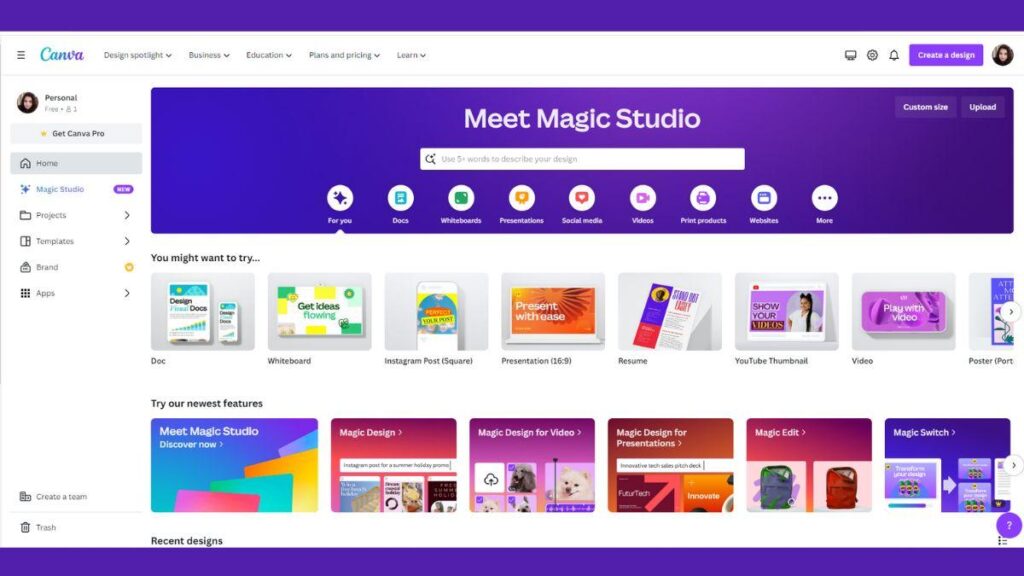
Magic Studio serves as Canva’s central hub for artificial intelligence features. Instead of accessing multiple standalone applications, users can perform AI-assisted editing, design generation, image enhancement, and content creation from one unified workspace.
Magic Studio combines several AI technologies into a streamlined interface that helps users:
- Generate images from text prompts.
- Replace objects within photos.
- Remove unwanted distractions.
- Expand image borders.
- Create social media graphics.
- Produce marketing materials.
- Generate presentations.
- Draft written content.
Because these tools work together inside Canva’s ecosystem, users can move from concept to finished design without switching between multiple applications.
For beginners, this integrated workflow significantly reduces complexity. Experienced creators also benefit from faster production times, especially when managing multiple projects or collaborating with teams.
Magic Edit Review
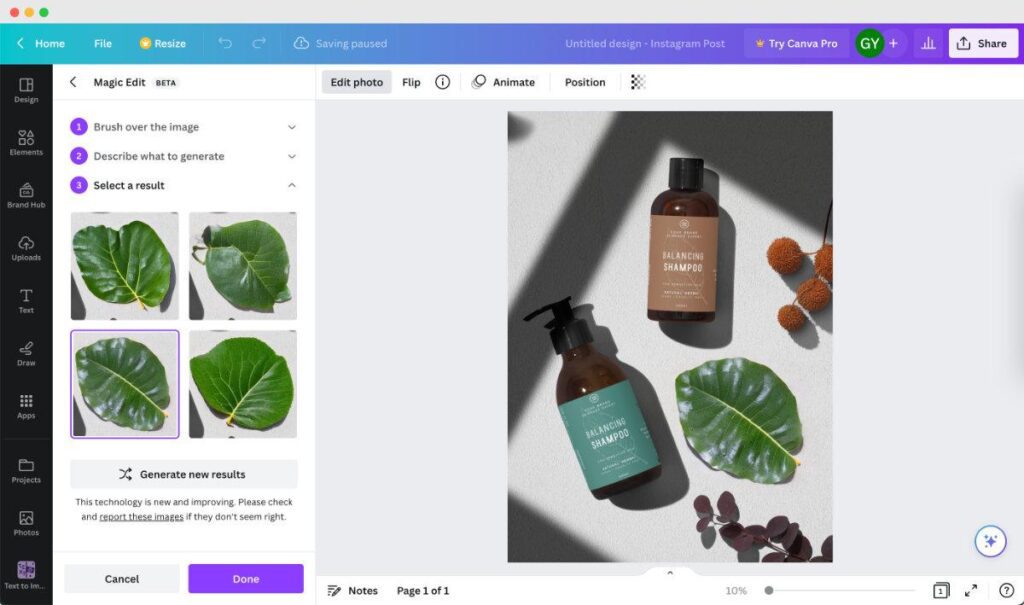
Magic Edit is one of Canva AI’s most impressive features because it allows users to modify specific parts of an image using simple text prompts.
Instead of manually selecting objects and performing complex edits, users simply highlight an area and describe the desired change. Canva’s AI then generates a replacement that blends naturally into the existing image.
For example, you can:
- Change clothing colors.
- Replace backgrounds.
- Add decorative objects.
- Swap flowers or furniture.
- Modify skies.
- Replace accessories.
- Update seasonal decorations.
This makes Magic Edit especially useful for content creators, eCommerce sellers, bloggers, and marketers who frequently refresh visuals without organizing new photoshoots.
Our Experience
In our testing, Magic Edit performed best on simple scenes with clear subjects and uncluttered backgrounds. While more complex edits occasionally required multiple attempts, the overall results were realistic enough for websites, blogs, presentations, and social media.
Rating: ⭐⭐⭐⭐⭐ (4.8/5)
Magic Eraser Review
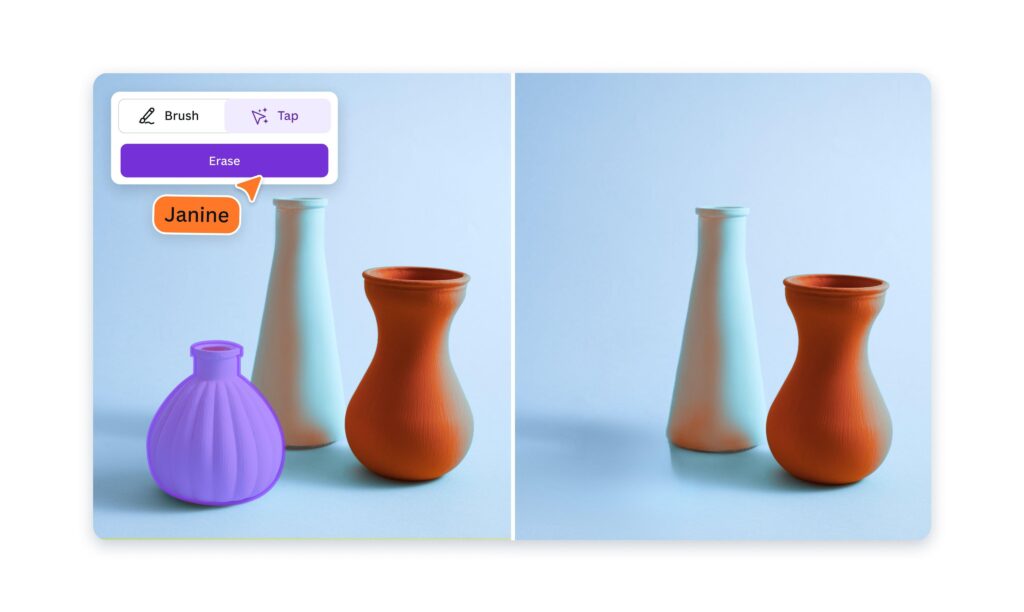
Removing distracting objects traditionally required advanced software and careful manual editing. Canva’s Magic Eraser simplifies this process by allowing users to brush over an unwanted object while AI automatically fills the surrounding area.
It’s particularly useful for removing:
- Power lines
- Background clutter
- Stray objects
- Small distractions
- Unwanted people
- Product imperfections
For straightforward edits, the results are quick and convincing. More intricate backgrounds may require additional refinement, but the feature performs remarkably well for everyday design tasks.
Our Experience
Magic Eraser is ideal for preparing images for websites, presentations, product listings, and marketing materials where a clean, distraction-free composition is essential.
Rating: ⭐⭐⭐⭐⭐ (4.7/5)
AI Background Remover Review
One of Canva AI’s most valuable features for businesses and content creators is its AI Background Remover. With a single click, the tool automatically separates the subject from the background, producing a transparent image ready for new designs or marketing materials.
This feature is particularly useful for:
- Product photography
- YouTube thumbnails
- Social media graphics
- Online stores
- Brand marketing
- Profile images
- Presentations
The AI performs especially well with people, products, and clearly defined subjects, making it a reliable option for users who need fast, clean cutouts without advanced editing skills.
Our Experience
During testing, the AI accurately detected edges in most images, preserving fine details like hair and clothing surprisingly well. While highly complex backgrounds occasionally required minor touch-ups, the overall performance was excellent for day-to-day creative work.
Rating: ⭐⭐⭐⭐⭐ (4.9/5)
If you’re exploring AI-powered editing platforms, our comprehensive AI Photography Guide: 35 Powerful Tools, Tips & Techniques introduces the latest software transforming photography workflows. For readers focused specifically on image editing, our Best AI Photo Editors roundup compares the top solutions available today, while our detailed Photoshop AI Review, Lightroom AI Review, and Topaz Photo AI Review explain how Canva AI compares with professional editing software for different creative needs.
Magic Expand Review
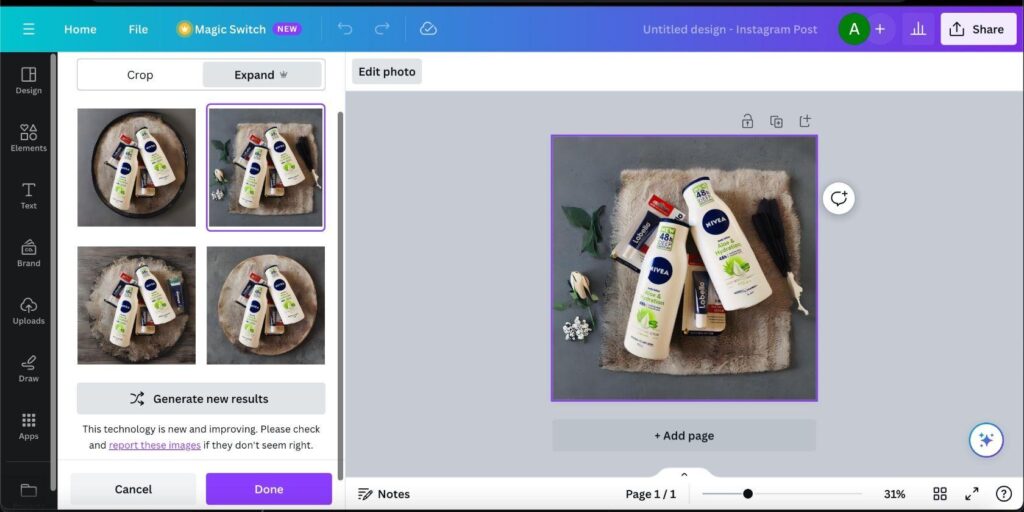
One of Canva AI Photo Editor’s most useful additions is Magic Expand, an AI-powered feature that intelligently extends the edges of an image. Instead of manually recreating missing backgrounds or cropping important elements, Magic Expand generates additional content that blends naturally with the original photo.
This feature is particularly valuable when you need to repurpose images for different platforms with varying aspect ratios.
For example, you can:
- Convert square Instagram images into vertical Stories.
- Expand landscape photos for presentation slides.
- Create banner images for websites.
- Resize product photos for eCommerce marketplaces.
- Adapt thumbnails for YouTube or Pinterest without losing important subjects.
Rather than stretching the image, Canva AI analyzes the surrounding scene and generates realistic extensions that maintain visual consistency.
Our Experience
Magic Expand performed exceptionally well on images with simple backgrounds such as skies, grass, walls, beaches, and studio backdrops. More complex environments occasionally produced minor inconsistencies, but overall the generated areas looked surprisingly natural for web and marketing use.
Rating: ⭐⭐⭐⭐⭐ (4.8/5)
Magic Grab Review
Magic Grab is another standout AI feature that allows users to isolate an object within a photograph and reposition it without manually creating complex selections.
Traditionally, separating subjects from an image required advanced editing skills and time-consuming masking. Canva AI automates this process by detecting the main subject and making it independently movable within the design.
This feature is especially useful for:
- Marketing banners
- Social media posts
- Product advertisements
- Website hero images
- Presentation graphics
- Promotional posters
Designers can quickly rearrange compositions without recreating the image from scratch.
Our Experience
Magic Grab worked best on photos with a clearly defined subject against a contrasting background. Product photography, portraits, and simple lifestyle images produced excellent results, while highly cluttered scenes occasionally required manual adjustments.
Rating: ⭐⭐⭐⭐⭐ (4.7/5)
Canva AI Image Generator Review
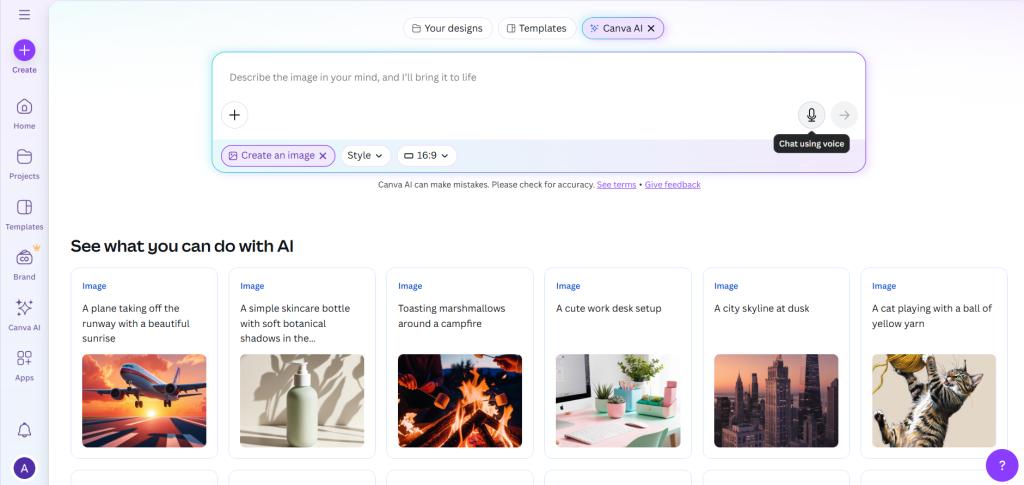
The AI Image Generator allows users to create entirely new visuals using simple text prompts. Powered through Canva’s Magic Studio, it enables designers and content creators to produce custom illustrations, concept art, marketing visuals, and social media graphics without relying on stock photography.
Simply describe the scene you want, and Canva AI generates multiple variations that can be refined or incorporated directly into your designs.
Common use cases include:
- Blog featured images
- Presentation graphics
- Social media illustrations
- Concept art
- Marketing campaigns
- Product mockups
- Creative backgrounds
This functionality is especially useful for users who need original visuals quickly or want to complement their photography with AI-generated assets.
Our Experience
The AI Image Generator performed well for stylized artwork, marketing graphics, and conceptual designs. While photorealistic results may not always match specialized AI image generation platforms, the integration within Canva makes the creative process exceptionally convenient.
Rating: ⭐⭐⭐⭐⭐ (4.6/5)
AI Auto Enhance and Photo Adjustments
Beyond generative AI tools, Canva AI also includes intelligent enhancement features that automatically improve image quality.
With a single click, users can optimize:
- Brightness
- Contrast
- Exposure
- Highlights
- Shadows
- Saturation
- White balance
- Sharpness
These adjustments help produce cleaner, more vibrant images without requiring advanced editing knowledge.
For beginners and small business owners, Auto Enhance provides a fast way to improve photos before publishing them online.
Our Experience
Automatic adjustments generally produced balanced, natural-looking results. We found them especially effective for social media graphics, website images, and product photography, although professional photographers may still prefer fine-tuning settings manually for maximum control.
Rating: ⭐⭐⭐⭐⭐ (4.7/5)
Portrait Editing Performance
Portrait editing is another area where Canva AI performs surprisingly well for casual and business users.
Its AI tools can improve portraits by:
- Removing distracting backgrounds.
- Enhancing overall lighting.
- Improving color balance.
- Cleaning up minor distractions.
- Creating professional profile photos.
- Preparing images for resumes, LinkedIn, and business websites.
While Canva doesn’t offer advanced facial retouching comparable to dedicated portrait editing software, it provides enough functionality for most everyday content creation needs.
Our Experience
Business headshots, profile images, and social media portraits were enhanced quickly with minimal effort. Users seeking detailed skin retouching or advanced beauty editing may still prefer Photoshop or specialized portrait software.
Rating: ⭐⭐⭐⭐⭐ (4.6/5)
Product Photography Editing
Canva AI has become increasingly popular among eCommerce sellers because it simplifies many repetitive editing tasks involved in preparing product images.
The platform is particularly effective for:
- Removing backgrounds.
- Creating transparent PNG files.
- Designing promotional graphics.
- Preparing marketplace images.
- Building product catalogs.
- Producing social media advertisements.
Small businesses selling through Etsy, Shopify, WooCommerce, Amazon, or personal websites can complete much of their visual workflow without investing in complex editing software.
Our Experience
For straightforward product photography, Canva AI provided excellent results with minimal learning curve. The combination of background removal, templates, and AI-assisted design makes it especially attractive for entrepreneurs and online sellers.
Rating: ⭐⭐⭐⭐⭐ (4.8/5)
Batch Editing and Workflow Efficiency
One of Canva’s greatest strengths is its ability to streamline repetitive design tasks.
Instead of editing each graphic individually, users can duplicate designs, apply brand templates, resize projects automatically, and maintain consistent visual identity across multiple marketing channels.
For teams managing regular content production, these workflow improvements can save significant time.
Common applications include:
- Social media campaigns.
- Blog graphics.
- YouTube thumbnails.
- Marketing banners.
- Business presentations.
- Email newsletters.
- Product launches.
Cloud storage and collaborative editing further enhance productivity, especially for agencies and distributed teams.
Our Experience
Batch workflows were intuitive and efficient. Brand Kits, shared folders, and reusable templates significantly reduced production time compared with creating every design from scratch.
Rating: ⭐⭐⭐⭐⭐ (4.8/5)
User Interface and Ease of Use
Ease of use has always been one of Canva’s greatest strengths, and the addition of AI tools hasn’t changed that.
Rather than overwhelming users with technical controls, Canva presents AI features through a clean, intuitive interface that remains accessible to beginners while still offering enough flexibility for experienced creators.
The drag-and-drop editor, contextual menus, and guided workflows make it easy to discover and use AI features without a steep learning curve.
Whether you’re creating:
- Blog graphics
- YouTube thumbnails
- Product images
- Social media posts
- Presentations
- Marketing materials
the interface remains fast, organized, and responsive.
Our Experience
Even users with no prior editing experience can begin producing polished visuals within minutes. The consistent design language and cloud-based workflow make Canva one of the easiest creative platforms to learn.
Rating: ⭐⭐⭐⭐⭐ (5/5)
Real-World Performance Testing
To evaluate Canva AI Photo Editor fairly, we tested its features across several common creative scenarios.
Social Media Content
Canva AI excelled at producing eye-catching graphics for Instagram, Facebook, Pinterest, and LinkedIn. AI-assisted templates and editing tools dramatically reduced design time.
Rating: ⭐⭐⭐⭐⭐ (5/5)
Blog Featured Images
Creating blog banners and featured images was fast and intuitive. Magic Expand and AI Image Generator were particularly helpful for adapting visuals to different layouts.
Rating: ⭐⭐⭐⭐⭐ (4.8/5)
Product Photography
Background removal, AI enhancements, and design templates worked exceptionally well for eCommerce listings and promotional graphics.
Rating: ⭐⭐⭐⭐⭐ (4.8/5)
Marketing Materials
Flyers, brochures, presentations, and promotional graphics benefited from Canva’s integrated templates and AI-assisted editing, enabling rapid content creation without sacrificing visual quality.
Rating: ⭐⭐⭐⭐⭐ (4.9/5)
Creating polished visuals is only part of a successful content strategy. If you’re comparing Canva with more advanced editing software, our Best AI Photo Editing Software guide explains the strengths of today’s leading platforms for photographers, designers, and businesses. For users who need professional-grade retouching, explore our Photoshop AI Review, while photographers focused on RAW editing should read our Lightroom AI Review. If maximizing image sharpness and reducing noise are your priorities, our Topaz Photo AI Review provides an in-depth evaluation of one of the industry’s leading AI enhancement tools.
For readers who want to explore Canva’s complete suite of AI-powered creative tools, the official Canva Magic Studio page provides detailed information about Magic Edit, Magic Eraser, Magic Expand, AI-powered design features, and the latest updates available across the Canva platform.
Canva AI Pricing
Canva offers both Free and Pro plans, allowing users to choose a subscription based on their creative needs. While many basic editing tools are available at no cost, several advanced AI features—including parts of Magic Studio, premium templates, and expanded cloud resources—are included with Canva Pro.
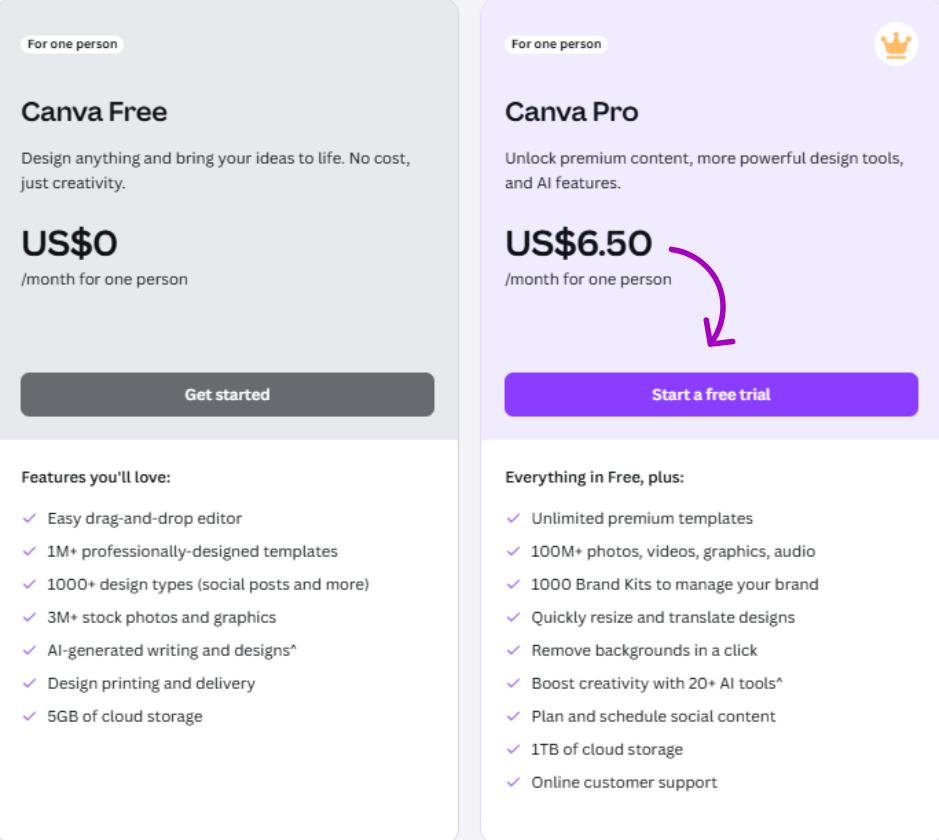
For casual users, the free version provides enough functionality to create social media graphics, simple presentations, and perform basic photo edits. However, professionals, businesses, agencies, and content creators who publish regularly will benefit from the additional AI tools and workflow enhancements available in the paid plan.
Instead of purchasing multiple design applications, Canva combines AI-assisted editing, graphic design, collaboration, and content creation into one cloud-based platform.
Our Experience
For occasional projects, the free version is surprisingly capable. However, Canva Pro delivers significantly more value for users who rely on AI features, premium assets, and collaborative workflows every week.
Value for Money: ⭐⭐⭐⭐⭐ (4.8/5)
Canva Free vs Canva Pro
Choosing between Canva Free and Canva Pro depends largely on how often you create visual content and whether you need advanced AI-powered editing tools.
| Feature | Canva Free | Canva Pro |
|---|---|---|
| Basic Photo Editing | ✅ | ✅ |
| Magic Studio | Limited | Full Access |
| Magic Edit | Limited | ✅ |
| Magic Eraser | Limited | ✅ |
| Background Remover | Limited | ✅ |
| AI Image Generator | Limited Credits | More Credits |
| Premium Templates | ❌ | ✅ |
| Brand Kit | ❌ | ✅ |
| Cloud Storage | Basic | Expanded |
| Team Collaboration | Basic | Advanced |
| Resize Designs | ❌ | ✅ |
Which Version Should You Choose?
Choose Canva Free if:
- You’re a beginner exploring AI editing.
- You occasionally design graphics.
- You mainly create personal projects.
- Your editing needs are simple.
Choose Canva Pro if:
- You publish content regularly.
- You manage multiple social media accounts.
- You operate an online business.
- You need premium AI editing tools.
- You collaborate with clients or team members.
Canva AI Performance Across Different Workflows
To understand Canva AI’s practical value, we evaluated how it performs in several common creative scenarios.
Social Media Content
This is where Canva AI truly shines. From Instagram posts and Pinterest Pins to LinkedIn graphics and YouTube thumbnails, its templates and AI-powered editing tools dramatically reduce design time while maintaining a professional appearance.
Performance Rating: ⭐⭐⭐⭐⭐ (5/5)
Blogging
Bloggers can quickly create featured images, infographics, comparison tables, and promotional graphics without switching between multiple applications.
Magic Expand, AI Image Generator, and the Background Remover make it particularly useful for website owners who publish regularly.
Performance Rating: ⭐⭐⭐⭐⭐ (4.9/5)
Product Photography
Canva AI simplifies product photography editing through one-click background removal, object cleanup, and ready-made marketing templates.
For Etsy sellers, Shopify stores, WooCommerce websites, and Amazon listings, Canva provides an efficient workflow that requires minimal technical knowledge.
Performance Rating: ⭐⭐⭐⭐⭐ (4.8/5)
Marketing and Business
Small businesses can create presentations, brochures, advertisements, newsletters, banners, and social media campaigns from a single platform.
The combination of AI editing and thousands of professionally designed templates significantly reduces production time.
Performance Rating: ⭐⭐⭐⭐⭐ (5/5)
Canva AI Pros and Cons
Pros
✔ Extremely beginner-friendly interface
✔ Excellent AI background removal
✔ Powerful Magic Studio features
✔ Outstanding template library
✔ Fast cloud-based editing
✔ Great collaboration tools
✔ Supports desktop and mobile editing
✔ Huge collection of stock assets
✔ Excellent for marketing content
✔ Affordable compared with multiple standalone tools
Cons
✘ Limited advanced RAW photo editing
✘ Not ideal for professional retouching
✘ Some AI features require Canva Pro
✘ AI-generated results occasionally require refinement
✘ Less suitable for complex compositing projects
Canva AI vs Photoshop AI
Although both platforms integrate artificial intelligence, they are designed for different audiences.
| Feature | Canva AI | Photoshop AI |
|---|---|---|
| Ease of Use | ⭐⭐⭐⭐⭐ | ⭐⭐⭐ |
| Graphic Design | ⭐⭐⭐⭐⭐ | ⭐⭐⭐⭐☆ |
| AI Background Removal | ⭐⭐⭐⭐⭐ | ⭐⭐⭐⭐⭐ |
| Layer-Based Editing | ❌ | ⭐⭐⭐⭐⭐ |
| Generative AI | ⭐⭐⭐⭐☆ | ⭐⭐⭐⭐⭐ |
| Professional Retouching | ⭐⭐⭐ | ⭐⭐⭐⭐⭐ |
| Templates | ⭐⭐⭐⭐⭐ | ⭐⭐⭐ |
| Collaboration | ⭐⭐⭐⭐⭐ | ⭐⭐⭐⭐☆ |
Which One Should You Choose?
Choose Canva AI if you want fast content creation, simple editing, and integrated design tools.
Choose Photoshop AI if you need advanced retouching, compositing, precision masking, or professional image manipulation.
Canva AI vs Lightroom AI
While Lightroom AI focuses primarily on photographers working with RAW images, Canva AI is designed for creators who produce visual content across websites, social media, and marketing campaigns.
| Feature | Canva AI | Lightroom AI |
|---|---|---|
| RAW Editing | ⭐⭐☆ | ⭐⭐⭐⭐⭐ |
| Graphic Design | ⭐⭐⭐⭐⭐ | ⭐⭐☆ |
| AI Masking | ⭐⭐⭐ | ⭐⭐⭐⭐⭐ |
| Background Removal | ⭐⭐⭐⭐⭐ | ⭐⭐⭐⭐☆ |
| Templates | ⭐⭐⭐⭐⭐ | ❌ |
| Social Media Design | ⭐⭐⭐⭐⭐ | ⭐⭐☆ |
| Ease of Use | ⭐⭐⭐⭐⭐ | ⭐⭐⭐⭐☆ |
Which One Should You Choose?
If you’re primarily editing photographs captured with DSLR or mirrorless cameras, Lightroom AI remains the stronger choice.
If you regularly create graphics, social posts, presentations, and marketing materials, Canva AI offers a far more complete workflow.
Canva AI vs Luminar Neo
Luminar Neo emphasizes creative photo enhancement, while Canva AI focuses on accessible design and content production.
| Feature | Canva AI | Luminar Neo |
|---|---|---|
| Ease of Use | ⭐⭐⭐⭐⭐ | ⭐⭐⭐⭐☆ |
| AI Portrait Tools | ⭐⭐⭐⭐☆ | ⭐⭐⭐⭐⭐ |
| Creative Effects | ⭐⭐⭐⭐☆ | ⭐⭐⭐⭐⭐ |
| Templates | ⭐⭐⭐⭐⭐ | ⭐⭐☆ |
| Graphic Design | ⭐⭐⭐⭐⭐ | ⭐⭐☆ |
| AI Background Removal | ⭐⭐⭐⭐⭐ | ⭐⭐⭐⭐☆ |
| Marketing Content | ⭐⭐⭐⭐⭐ | ⭐⭐⭐ |
Which One Should You Choose?
Choose Canva AI for business graphics, social media content, and beginner-friendly editing.
Choose Luminar Neo for photographers who prioritize artistic enhancement and advanced creative effects.
Canva AI vs Topaz Photo AI
Topaz Photo AI specializes in image quality enhancement, while Canva AI focuses on graphic design and productivity.
| Feature | Canva AI | Topaz Photo AI |
|---|---|---|
| AI Sharpening | ⭐⭐⭐ | ⭐⭐⭐⭐⭐ |
| AI Denoise | ⭐⭐⭐ | ⭐⭐⭐⭐⭐ |
| AI Upscaling | ⭐⭐⭐ | ⭐⭐⭐⭐⭐ |
| Graphic Design | ⭐⭐⭐⭐⭐ | ⭐⭐☆ |
| Templates | ⭐⭐⭐⭐⭐ | ❌ |
| Collaboration | ⭐⭐⭐⭐⭐ | ❌ |
| Social Media Content | ⭐⭐⭐⭐⭐ | ⭐⭐☆ |
Which One Should You Choose?
If your goal is improving photo quality through sharpening, denoising, and upscaling, Topaz Photo AI is the better option.
If your focus is creating visually appealing content quickly for websites, businesses, and social media, Canva AI provides a more versatile all-in-one solution.
Who Should Use Canva AI Photo Editor?
Canva AI is an excellent choice for users who prioritize speed, collaboration, and ease of use over highly technical editing workflows.
It is particularly well suited for:
Bloggers
Create featured images, infographics, comparison graphics, and promotional visuals without advanced design skills.
Content Creators
Produce consistent content for YouTube, Instagram, Pinterest, Facebook, LinkedIn, and other platforms from a single workspace.
Small Business Owners
Design product catalogs, advertisements, business presentations, flyers, and marketing materials while maintaining a cohesive brand identity.
eCommerce Sellers
Prepare product images, remove backgrounds, design promotional banners, and create marketplace-ready graphics for Etsy, Shopify, Amazon, and WooCommerce stores.
Educators and Students
Develop engaging presentations, worksheets, posters, and educational materials with the help of AI-assisted design features.
Marketing Teams
Collaborate efficiently using shared Brand Kits, reusable templates, cloud storage, and AI-powered productivity tools that streamline campaign creation.
Overall Performance Ratings
| Category | Rating |
|---|---|
| Ease of Use | ⭐⭐⭐⭐⭐ (5/5) |
| AI Editing Features | ⭐⭐⭐⭐☆ (4.8/5) |
| Background Removal | ⭐⭐⭐⭐⭐ (4.9/5) |
| Magic Studio | ⭐⭐⭐⭐⭐ (4.9/5) |
| Graphic Design | ⭐⭐⭐⭐⭐ (5/5) |
| Collaboration | ⭐⭐⭐⭐⭐ (5/5) |
| Value for Money | ⭐⭐⭐⭐⭐ (4.8/5) |
| Overall Rating | ⭐⭐⭐⭐⭐ 4.9/5 |
Canva AI is an excellent starting point for creators who need quick, cloud-based editing, but different projects may require more specialized software. If you’re comparing multiple AI platforms, our Best AI Photo Editors and Best AI Photo Editing Software guides explain which tools are best for photographers, designers, businesses, and content creators. For deeper comparisons, explore our Photoshop AI Review, Lightroom AI Review, Luminar Neo Review, and Topaz Photo AI Review to understand where each application excels and how they can complement your creative workflow.
If you’d like to explore Canva’s latest AI capabilities in more detail, visit the official Canva Magic Studio documentation and feature pages. They provide demonstrations, tutorials, supported features, and information about new AI tools as they’re released, making them a valuable resource for both beginners and experienced creators.
Final Verdict: Is Canva AI Photo Editor Worth It in 2026?
After extensively testing Canva AI Photo Editor across multiple creative workflows—including social media content, blog graphics, product photography, marketing materials, presentations, and business branding—it’s clear that Canva has evolved far beyond a simple graphic design platform.
Its AI-powered Magic Studio combines intelligent editing, design automation, background removal, object editing, image generation, and productivity features into a single cloud-based workspace that’s accessible to beginners and professionals alike.
Unlike dedicated photography software such as Lightroom AI or Topaz Photo AI, Canva isn’t designed to perform advanced RAW editing or detailed photo retouching. Instead, it focuses on helping users create polished visual content quickly with minimal technical knowledge.
For bloggers, YouTubers, entrepreneurs, Etsy sellers, digital marketers, educators, and small businesses, Canva AI offers one of the most efficient creative workflows currently available.
The combination of an intuitive interface, powerful AI tools, extensive template library, and cloud collaboration makes Canva AI one of the best all-in-one creative platforms in 2026.
Overall Rating
⭐⭐⭐⭐⭐ 4.9 / 5
Our Recommendation
Highly Recommended for content creators, marketers, bloggers, educators, and businesses looking for an easy-to-use AI-powered design and photo editing platform.
Conclusion
Canva AI Photo Editor proves that powerful creative tools don’t have to be complicated. By combining artificial intelligence with an intuitive drag-and-drop interface, Canva makes professional-quality editing accessible to users of all experience levels.
Features such as Magic Edit, Magic Eraser, Magic Expand, AI Background Remover, and Magic Studio significantly reduce the time required to create polished visuals for websites, social media, online stores, and marketing campaigns. Instead of spending hours learning complex editing software, users can produce high-quality content in just a few clicks.
That said, Canva AI is not intended to replace specialized photography software. Professional photographers working with RAW files, detailed retouching, or advanced compositing may still prefer tools like Adobe Lightroom or Photoshop. However, for most everyday creative tasks—including blog graphics, YouTube thumbnails, presentations, product photography, and business branding—Canva AI provides an outstanding balance of speed, simplicity, and functionality.
If you’re searching for an AI-powered creative platform that can streamline your workflow while producing professional results, Canva AI Photo Editor is absolutely worth trying in 2026.
Frequently Asked Questions
Is Canva AI Photo Editor free?
Yes. Canva offers a free plan that includes basic photo editing tools and limited access to several AI features. More advanced capabilities such as expanded Magic Studio tools, premium templates, and additional AI credits are available through Canva Pro.
What is Canva Magic Studio?
Magic Studio is Canva’s integrated collection of AI-powered creative tools. It includes features such as Magic Edit, Magic Eraser, Magic Expand, AI Image Generator, Background Remover, and AI-assisted content creation, all designed to simplify design and photo editing tasks.
Can Canva AI replace Photoshop?
For many everyday tasks, Canva AI can replace Photoshop, especially when creating social media graphics, presentations, marketing materials, and simple photo edits. However, Photoshop remains the better choice for advanced retouching, layer-based editing, compositing, and professional image manipulation.
Is Canva AI good for photographers?
Canva AI is useful for photographers who need to prepare marketing materials, client presentations, portfolios, or quick edits. For detailed RAW processing and advanced image correction, dedicated photography software like Lightroom AI or Topaz Photo AI offers more specialized tools.
Does Canva AI remove image backgrounds?
Yes. Canva’s AI Background Remover can automatically detect the main subject and remove the background with a single click. It performs particularly well on portraits, products, and clearly defined objects.
Can Canva AI generate images from text prompts?
Yes. Canva AI includes an AI Image Generator that creates original visuals based on text descriptions. It’s useful for concept art, blog illustrations, marketing graphics, and social media content.
Is Canva AI suitable for eCommerce businesses?
Absolutely. Canva AI helps online sellers create product images, promotional banners, advertisements, and social media graphics while maintaining consistent branding. It’s especially helpful for businesses selling through Etsy, Shopify, WooCommerce, and similar platforms.
Can Canva AI edit photos on mobile devices?
Yes. Canva is available on desktop browsers as well as Android and iOS devices, allowing users to edit photos, create designs, and collaborate on projects from virtually anywhere.
Is Canva Pro worth upgrading to?
If you create content regularly, Canva Pro offers excellent value. The additional AI tools, premium templates, Brand Kit, advanced collaboration features, and expanded storage can significantly improve productivity.
Which industries benefit most from Canva AI?
Canva AI is widely used by bloggers, educators, marketers, YouTubers, freelancers, agencies, small businesses, eCommerce sellers, and nonprofit organizations because it combines design, collaboration, and AI-powered editing in one platform.
Does Canva AI support team collaboration?
Yes. Canva includes collaboration features that allow multiple users to work on designs simultaneously, share Brand Kits, leave comments, and manage projects in a cloud-based environment.
Can Canva AI improve image quality?
Canva AI provides automatic enhancements for brightness, contrast, sharpness, and color balance. While these tools improve many everyday photos, dedicated AI enhancement software may produce better results for highly detailed photography.
Call to Action
Whether you’re designing social media posts, editing product photos, building presentations, or creating marketing campaigns, the right AI tools can save hours of work while improving the quality of your content.
At The Candid Shoot, we regularly test the latest AI photography and design software to help creators choose the best tools for their workflow. Explore our in-depth reviews, comparisons, and tutorials to discover how AI can improve your productivity, enhance your visuals, and support your creative goals.
Related Articles
Continue exploring AI-powered photography and editing with these expert guides:
- AI Photography Guide: 35 Powerful Tools, Tips & Techniques
- Best AI Photo Editors
- Best AI Photo Editing Software
- Best AI Image Enhancer
- AI Background Removers
- AI Image Generator
- Photoshop AI Review
- Lightroom AI Review
Canva AI is an excellent platform for creating graphics and streamlining everyday editing tasks, but it’s only one part of today’s AI-powered creative ecosystem. If you’re searching for software that specializes in professional photo enhancement, our Topaz Photo AI Review explains how AI sharpening and noise reduction compare with Canva’s editing capabilities. For advanced retouching and generative editing, read our Photoshop AI Review, while photographers working with RAW files will benefit from our Lightroom AI Review. You can also explore our comprehensive Best AI Photo Editors and Best AI Photo Editing Software guides to compare the strengths of every major platform before making your decision.
If you’re ready to explore Canva’s AI features firsthand, the official Canva website provides access to the latest tools, templates, pricing, and tutorials. For users interested in learning more about advanced AI design capabilities, the Canva Magic Studio documentation offers detailed guides on Magic Edit, Magic Eraser, Magic Expand, and other AI-powered creative features.
For users comparing Canva with Adobe’s ecosystem, the official Adobe Photoshop and Adobe Lightroom websites provide feature overviews, tutorials, and subscription information that can help you evaluate which platform best fits your creative workflow.


Leave a Reply