
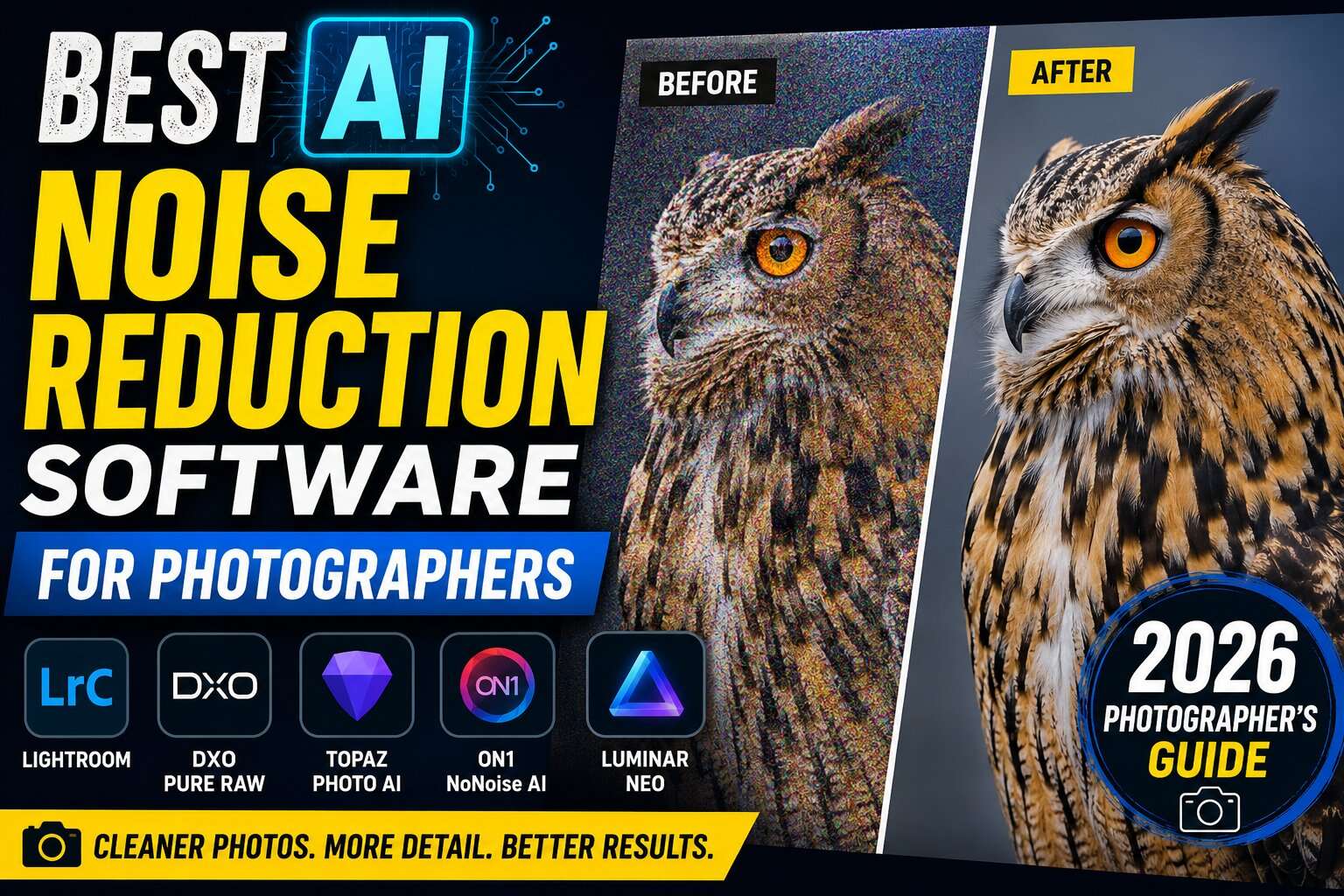
Discover the best AI noise reduction software for photographers in 2026. Compare Lightroom, DxO PureRAW, Topaz Photo AI, ON1 NoNoise AI, and more.
Table of Contents
Introduction
Digital noise is one of the most frustrating problems photographers encounter, especially when shooting at high ISO settings, in low light, or with underexposed images. Increasing ISO allows you to use faster shutter speeds and capture images in difficult lighting, but it can also introduce unwanted grain, color speckles, and loss of fine detail.
Traditional noise reduction tools can reduce these problems, but aggressive processing often comes with a trade-off: the image becomes soft, textures disappear, and important details can look artificial.
This is where AI noise reduction software has changed the photography workflow.
Modern AI denoise tools use machine learning and advanced image-processing algorithms to distinguish actual image detail from unwanted noise. Instead of simply blurring noisy pixels, these applications attempt to remove noise while preserving important textures such as hair, feathers, skin, fabric, foliage, and architectural details.
For photographers working with high-ISO wildlife images, wedding photographs captured in dark venues, night photography, astrophotography, indoor events, or older camera files, AI noise reduction can make a significant difference.
But not every AI denoise application produces the same results.
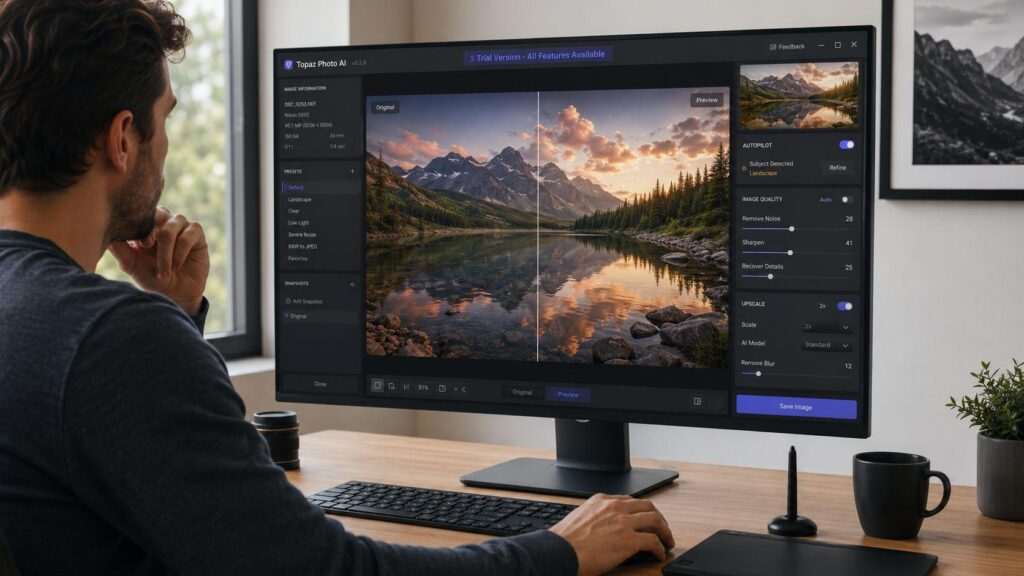
Some are designed primarily for RAW processing. Others work better as dedicated enhancement tools. Some integrate directly into Lightroom or Photoshop, while others operate as standalone applications.
In this guide, we’ll compare the best AI noise reduction software for photographers in 2026, explain how AI denoising works, compare leading applications, and help you choose the right tool for your photography workflow.
If you want to explore more AI-powered photography tools, continue with our guides on AI photo editing, image enhancement, photo culling, and AI photography software.
Quick Answer
The best AI noise reduction software for photographers depends on your workflow and the type of images you process.
Adobe Lightroom AI Denoise is one of the most convenient choices for photographers who already use Lightroom because denoising is integrated directly into the RAW workflow.
DxO PureRAW is particularly strong for photographers who want advanced RAW processing, noise reduction, demosaicing, and lens corrections before continuing their editing in another application. Its current PureRAW 6 release includes DeepPRIME XD3 for both Bayer and X-Trans sensors.
Topaz Photo is a strong choice when you want dedicated AI-based image enhancement and noise reduction, with different models designed for different noise levels and workflows.
Other applications, including ON1 NoNoise AI and DxO PhotoLab, can also be valuable depending on whether you prioritize standalone editing, RAW processing, batch workflows, or integration with your existing software.
The right choice ultimately depends on your camera files, editing software, budget, and how much control you want over the denoising process.
What Is AI Noise Reduction?
AI noise reduction is a computational photography technology that uses trained machine-learning models to identify and reduce unwanted noise while attempting to preserve genuine image detail.
Traditional noise reduction generally works by analyzing neighboring pixels and reducing variations that appear to be noise.
AI-powered systems take a more sophisticated approach.
They can analyze patterns across an image and use models trained on large collections of photographic data to distinguish between:
- Random digital noise
- Color noise
- Fine texture
- Edges
- Skin
- Hair
- Fur
- Feathers
- Foliage
- Architectural details
The goal is not simply to make the image smoother.
The goal is to create a cleaner photograph without destroying the details that make the photograph look natural.
Why Do Photographs Have Noise?
Digital camera sensors are highly sensitive to light, but they cannot capture perfectly clean information in every situation.
Noise becomes more noticeable when the camera receives less usable light or when the photographer pushes the sensor beyond its ideal operating conditions.
Several factors can contribute to visible noise.
High ISO
Increasing ISO amplifies the camera’s signal, allowing you to photograph in darker environments.
However, higher ISO settings generally make noise more visible.
For example, a photograph captured at ISO 100 may look extremely clean, while the same scene photographed at ISO 6400 can show significantly more grain and color noise.
This is especially important for:
- Wildlife photography
- Sports photography
- Wedding photography
- Concert photography
- Indoor events
- Night photography
Underexposure
An underexposed photograph can contain significant noise, particularly when the shadows are brightened heavily during post-processing.
For example, if you capture a dark image and later increase the exposure by several stops, noise hidden in the shadow areas can become much more obvious.
AI denoise software can help clean up these areas, although it cannot completely recreate information that was never captured.
Long Exposures
Long exposures can also introduce noise, particularly when the sensor becomes warm during extended exposure times.
This can affect:
- Astrophotography
- Night landscapes
- Light trails
- Architectural photography
- Long-exposure creative photography
Small Sensors
Camera sensor size can also influence noise performance.
Smartphones and cameras with smaller sensors can produce more visible noise under challenging lighting conditions than larger-sensor cameras, although modern computational photography has significantly improved the results from smaller sensors.
What Does AI Noise Reduction Actually Do?
AI denoise software generally performs several tasks simultaneously.
1. Detects Noise
The software analyzes the image to determine which patterns are likely to be unwanted noise.
2. Separates Noise From Detail
This is one of the most important parts of AI denoising.
The software attempts to determine whether a fine pattern represents genuine photographic detail or unwanted sensor noise.
For example, it may need to distinguish between:
Bird feathers and high-ISO grain
or
skin texture and color noise.
3. Reduces Noise
Once noise has been identified, the AI model reduces it while attempting to retain important image information.
4. Recovers or Preserves Detail
Advanced systems attempt to maintain fine textures and edges rather than producing an overly smooth photograph.
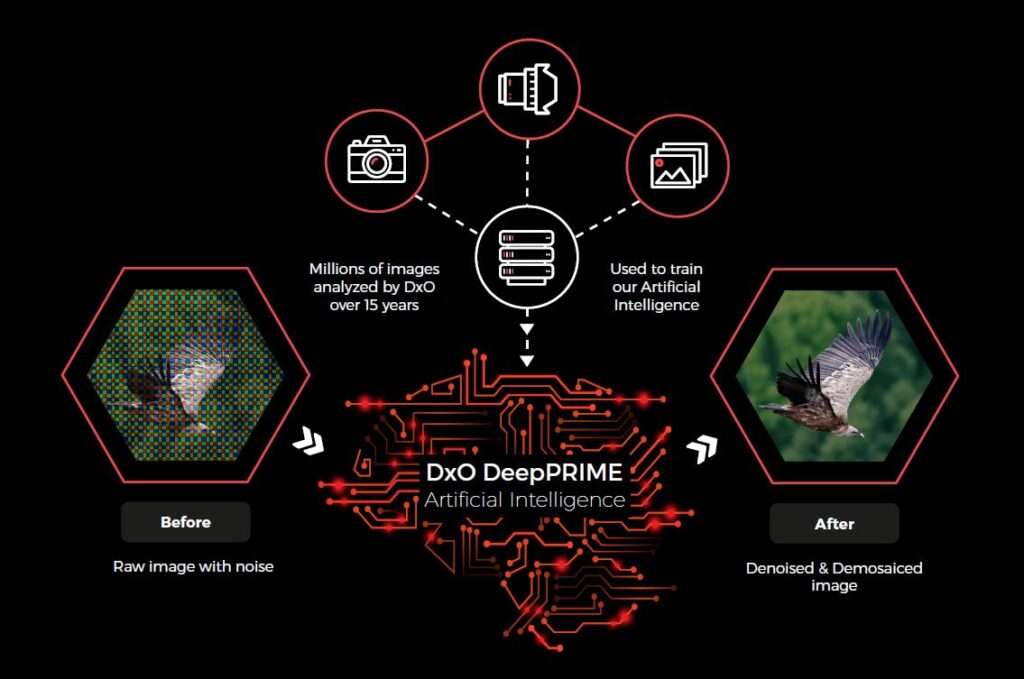
DxO’s DeepPRIME technology, for example, combines denoising and demosaicing during RAW processing, while its newer generations focus heavily on preserving detail in difficult high-ISO files.
AI Noise Reduction vs Traditional Noise Reduction
The biggest difference is how the software decides what should remain in the photograph.
| Feature | Traditional Noise Reduction | AI Noise Reduction |
|---|---|---|
| Noise Removal | Basic | Advanced |
| Detail Preservation | Moderate | Generally better |
| High-ISO Images | Good | Excellent |
| Fine Texture | Can become soft | Better preservation |
| Skin Texture | Can become smooth | More intelligent processing |
| Wildlife Details | Can lose feathers/fur | Better detail retention |
| RAW Processing | Yes | Yes, depending on software |
| Automatic Processing | Limited | Often available |
| Learning-Based Models | ❌ | ✅ |
| Batch Processing | Usually | Usually |
| User Control | High | High on many tools |
AI does not automatically mean that every image will look better.
A poorly configured AI denoise process can still remove too much texture or create an artificial appearance. The best results usually come from applying enough noise reduction to clean the image while preserving natural detail.
What Types of Noise Can AI Software Remove?
Modern AI denoise applications can address several forms of image noise.
Luminance Noise
Luminance noise appears as variations in brightness and often resembles fine monochrome grain.
It becomes particularly visible at high ISO settings.
Color Noise
Color noise appears as unwanted red, green, blue, or purple speckles.
It can be particularly distracting in darker areas of an image.
High-ISO Noise
High-ISO noise is common when photographers increase ISO to maintain a usable shutter speed in low-light conditions.
AI denoise is particularly useful for these photographs.
Shadow Noise
Shadow areas can reveal significant noise when exposure or shadows are increased during editing.
AI tools can help clean these areas while retaining useful texture.
Compression Noise
JPEG and other compressed formats can contain artifacts caused by repeated or aggressive compression.
Some AI enhancement applications can reduce these artifacts, although results depend heavily on the original file quality.
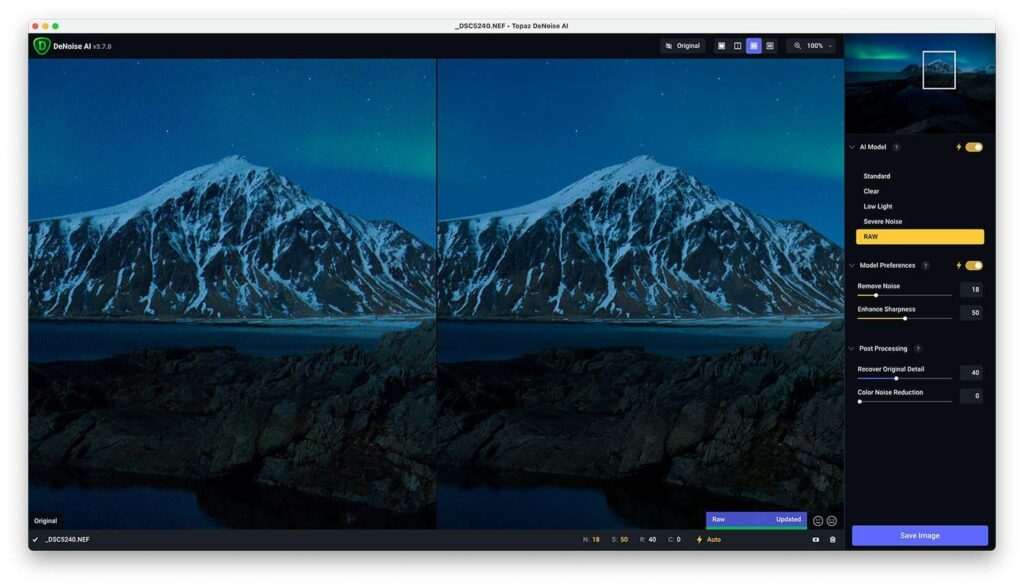
Topaz’s current documentation distinguishes between RAW Denoise and its regular Denoise enhancement, noting that RAW files should use the dedicated RAW workflow when appropriate rather than applying the standard denoise process to RAW noise.
When Should Photographers Use AI Noise Reduction?
AI denoising is particularly useful when the photograph contains more noise than you would normally accept.
Wildlife Photography
Wildlife photographers frequently shoot at high ISO because they need fast shutter speeds to freeze animal movement.
A photographer may need ISO 3200, 6400, 12800, or higher depending on the conditions.
AI denoise can help clean the resulting file while preserving important details such as:
- Fur
- Feathers
- Eyes
- Whiskers
- Skin
- Scales
Wedding Photography
Wedding photographers often work in difficult lighting.
Churches, reception halls, dance floors, and evening venues may require high ISO settings.
AI noise reduction can help clean these images before final delivery.
Sports Photography
Sports photographers need fast shutter speeds.
In poor lighting, maintaining a shutter speed fast enough to freeze movement often requires a high ISO.
AI denoise can therefore become an important part of the sports editing workflow.
Astrophotography
Astrophotographers frequently deal with extremely low-light conditions.
Noise reduction can help improve the appearance of:
- Stars
- Night skies
- Milky Way images
- Night landscapes
However, astrophotography requires careful processing because aggressive denoising can remove faint stars and subtle details.
Concert Photography
Concert photographers often face a combination of:
- Low light
- Fast movement
- Strong contrast
- High ISO
- Colored stage lighting
AI denoise can help clean up files captured under these demanding conditions.
Can AI Noise Reduction Fix a Bad Photograph?
AI noise reduction can improve a noisy photograph, but it cannot perform miracles.
It can reduce unwanted noise and improve perceived image quality, but it cannot completely restore information that was never captured.
For example, if an image is:
- Extremely underexposed
- Severely out of focus
- Heavily motion blurred
- Extremely compressed
- Completely lacking in detail
AI denoise alone cannot turn it into a perfect professional photograph.
This is why noise reduction should be considered an image enhancement tool, not a replacement for good exposure, appropriate shutter speed, accurate focus, and good camera technique.
AI Noise Reduction and Image Detail
One of the biggest challenges in denoising is finding the right balance between cleanliness and detail.
Too little noise reduction leaves distracting grain.
Too much noise reduction can produce:
- Plastic-looking skin
- Smooth feathers
- Wax-like textures
- Loss of hair detail
- Artificial foliage
- Soft edges
The best AI denoise software attempts to understand which details should remain and which variations can safely be removed.

For example, Topaz Photo currently provides multiple noise models and controls that let users balance noise removal against detail preservation. Its documentation describes Normal, Strong, and Extreme approaches for different noise levels.
Does AI Noise Reduction Make Photos Sharper?
Not necessarily.
Noise reduction and sharpening are different processes.
Noise reduction attempts to remove unwanted image noise.
Sharpening attempts to increase the perceived definition of edges and fine details.
However, some modern AI applications combine these processes or provide them within the same workflow.
Topaz Photo, for example, includes a Noise-Aware sharpening model designed to separate image detail from noise before applying sharpening, which can be useful for high-ISO, wildlife, sports, and nighttime photographs.
A good workflow is therefore often:
RAW File → AI Noise Reduction → Basic Editing → Sharpening → Final Output
rather than simply applying maximum sharpening to a noisy photograph.
Is AI Noise Reduction Worth It?
For photographers who regularly work with high-ISO or low-light images, yes, AI noise reduction can be extremely valuable.
It is particularly worthwhile if you frequently photograph:
- Weddings
- Wildlife
- Sports
- Events
- Concerts
- Night scenes
- Astrophotography
- Indoor portraits
The value is less obvious for photographers who primarily shoot landscapes, products, or studio portraits at low ISO under controlled lighting.
The important point is that AI denoise should solve a real problem in your workflow. Buying software simply because it uses AI does not guarantee better photographs.
What Makes a Good AI Noise Reduction Tool?
Before choosing software, photographers should evaluate more than just how much noise the application removes.
The most important factors include:
Noise Removal Quality
Does the software actually eliminate distracting noise without destroying natural detail?
Detail Preservation
Can it preserve hair, feathers, skin, fabric, foliage, and fine textures?
RAW Support
Does it process your camera’s RAW files directly?
Processing Speed
How long does it take to process a large batch of photographs?
Batch Processing
Can you process hundreds of photographs efficiently?
Lightroom Integration
Can you incorporate it into your existing Lightroom workflow?
Photoshop Integration
Can you use it as part of a Photoshop-based workflow?
Camera Compatibility
Does the software support your camera and RAW format?
Output Quality
Can it export high-quality TIFF, DNG, JPEG, or other files without unnecessary degradation?
Price
Does the improvement in image quality justify the software’s cost?
These factors will form the basis of our comparison of the leading AI noise reduction applications in the next sections.
The Best AI Noise Reduction Software in 2026
Several applications stand out for photographers looking for AI-powered denoising.
The leading options we’ll examine in this guide include:
- Adobe Lightroom AI Denoise
- DxO PureRAW
- Topaz Photo
- ON1 NoNoise AI
- DxO PhotoLab
- Luminar Neo
Each takes a different approach to noise reduction.
Some are designed around complete RAW workflows, while others focus specifically on image enhancement.
Professional Insight: The best AI denoise result is not necessarily the image with the least visible noise. For professional photography, preserving realistic texture and important detail is usually more valuable than producing an unnaturally smooth image. When comparing AI noise reduction software, always judge results at both 100% magnification and normal viewing size.
Adobe Lightroom AI Denoise
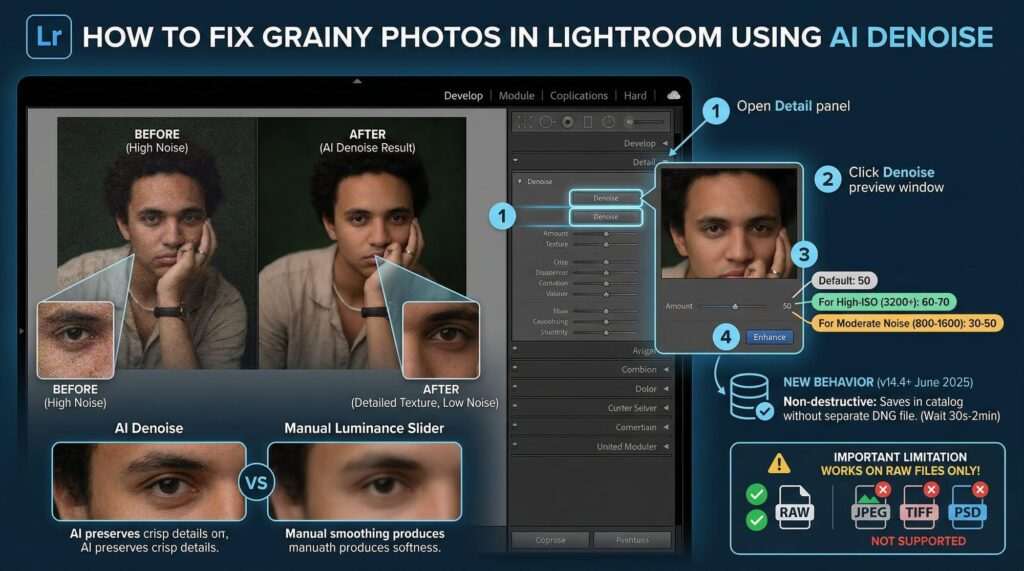
For photographers already using Adobe Lightroom, Lightroom AI Denoise is one of the most convenient ways to reduce noise without leaving the normal RAW editing workflow.
Adobe’s Denoise feature is designed to reduce noise while preserving image detail, making it particularly useful for high-ISO RAW photographs. Because the feature is integrated into Lightroom, photographers don’t necessarily need a separate application just to clean up noisy files.
Key Features
- AI-powered RAW noise reduction
- Integrated Lightroom workflow
- Detail preservation
- High-ISO noise reduction
- RAW processing
- Automatic processing
- Adjustable denoise strength
- Non-destructive editing workflow
Best For
Photographers who already use Adobe Lightroom and want AI denoising without adding another application to their workflow.
Advantages
- Extremely convenient for Lightroom users
- No need to export files to another application
- Works directly within the RAW workflow
- Excellent for high-ISO photographs
- Easy to incorporate into an existing editing process
Limitations
- Processing can be demanding on your computer
- Denoising creates a new enhanced DNG rather than simply changing the original RAW
- Less specialized than dedicated AI enhancement applications
- Results can vary depending on the camera and image
Overall Rating
★★★★★ 4.8/5
DxO PureRAW
DxO PureRAW takes a different approach from Lightroom. Rather than functioning primarily as a general-purpose photo editor, PureRAW is designed to improve RAW files before they enter the photographer’s normal editing workflow.
The current DxO PureRAW 6 uses the company’s DeepPRIME XD3 technology for both Bayer and X-Trans sensor cameras. DxO says the neural network performs denoising and demosaicing together, with chromatic-aberration correction also incorporated into the process.
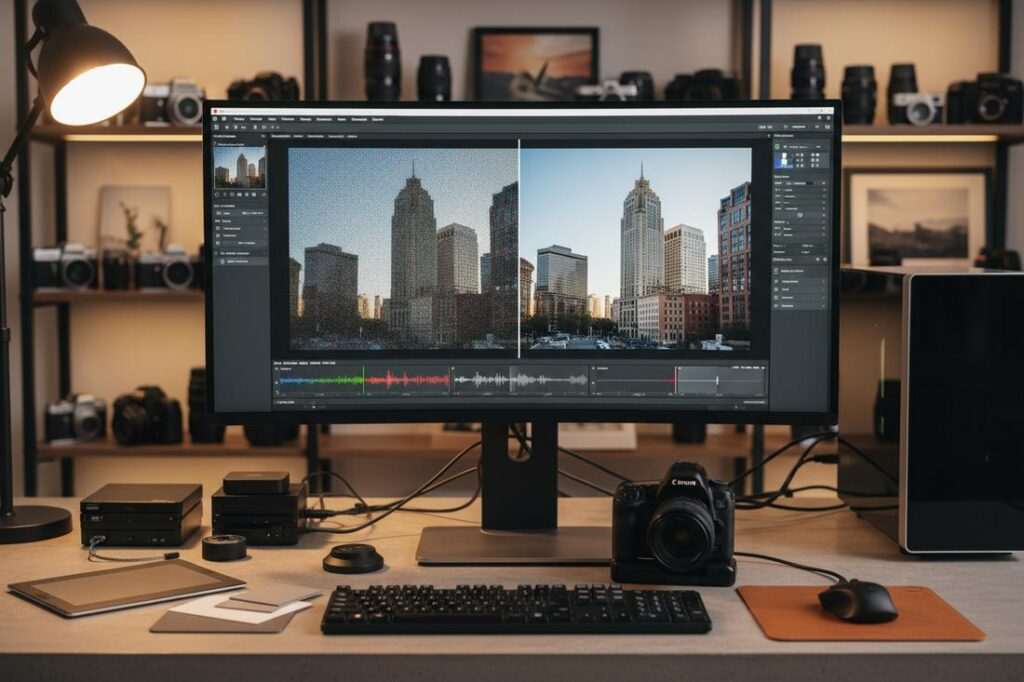
This makes PureRAW particularly interesting for photographers who want to process their RAW files first and then continue editing them in Lightroom, Photoshop, or another application.
Key Features
- DeepPRIME XD3 AI denoising
- RAW processing
- AI-powered demosaicing
- Camera and lens corrections
- High-ISO noise reduction
- DNG output
- Batch processing
- High-Fidelity compressed DNG output
- Automated sensor dust removal
PureRAW 6 also introduced compressed DNG files that DxO says can be up to four times smaller than standard uncompressed DNG files, while retaining RAW-quality flexibility. Its batch parallelization is designed to improve high-volume processing speed.
Best For
Wildlife, sports, wedding, and low-light photographers who want high-quality RAW processing before continuing their normal editing workflow.
Advantages
- Excellent high-ISO RAW processing
- Strong detail preservation
- Combines denoising and demosaicing
- Camera and lens-specific corrections
- Excellent for demanding RAW files
- Useful as the first step in a Lightroom workflow
Limitations
- Primarily focused on RAW processing rather than complete photo editing
- Adds another processing step to your workflow
- Processing can require significant computer resources
- Camera support should be checked before purchase
Overall Rating
★★★★★ 4.9/5
Topaz Photo
Topaz Photo is a dedicated AI-powered photo enhancement application that combines noise reduction with other image-enhancement capabilities.
Its noise reduction system offers multiple models designed for different levels of image noise. The current documentation describes Normal, Strong, and Extreme models, allowing photographers to select an approach based on the severity of the noise and desired detail retention.
The software can also use an automatic workflow in which its Autopilot analyzes an image and determines whether noise reduction should be applied.
Key Features
- AI noise reduction
- Normal, Strong, and Extreme noise models
- Automatic noise detection
- Detail recovery
- AI sharpening
- RAW-specific denoising workflow
- Batch processing
- Photo enhancement tools
Important RAW Workflow Consideration
Topaz specifically distinguishes between its standard Denoise enhancement and its RAW workflow.
According to Topaz’s documentation, photographers working with RAW files should use the dedicated RAW Denoise workflow rather than applying the standard non-RAW Denoise process directly to RAW noise, as the latter can produce artifacts or overprocessed results.
Best For
Photographers who want dedicated AI image enhancement alongside noise reduction and sharpening.
Advantages
- Multiple AI denoise models
- Automatic processing available
- Strong detail recovery
- Useful for difficult high-ISO images
- Combines denoising with other enhancement tools
- Suitable for photographers who need more than basic noise reduction
Limitations
- Can produce an artificial appearance when pushed too aggressively
- Processing can be hardware intensive
- Different workflows are required for RAW and non-RAW files
- More options can mean a slightly steeper learning curve
Overall Rating
★★★★★ 4.7/5
ON1 NoNoise AI
ON1 NoNoise AI is specifically designed around AI-powered noise reduction and detail preservation.
ON1 says its current NoNoise technology is designed for high-ISO and low-light photographs and can operate as a standalone application, a plugin for applications such as Lightroom and Photoshop, or as part of the broader ON1 Photo RAW ecosystem.
The software supports RAW workflows and can export DNG files while retaining the tonal and color range of the RAW workflow.
Key Features
- AI noise reduction
- Luminance noise reduction
- Color noise reduction
- Detail recovery
- Deblurring
- RAW processing
- Batch processing
- Lightroom integration
- Photoshop integration
- Standalone operation
ON1 also specifically highlights improvements for wildlife and astrophotography, making it an interesting option for photographers working in challenging low-light environments.
Best For
Wildlife, astrophotography, concert, and low-light photographers who want dedicated AI noise reduction with flexible workflow options.
Advantages
- Strong high-ISO performance
- Good detail preservation
- RAW support
- Works as standalone software or plugin
- Useful for wildlife and astrophotography
- Supports batch workflows
Limitations
- Some features overlap with broader ON1 Photo RAW functionality
- The number of available versions and licensing options can make the product lineup confusing
- Performance depends on computer hardware
Overall Rating
★★★★☆ 4.6/5
DxO PhotoLab
DxO PhotoLab combines RAW development with DxO’s DeepPRIME noise reduction technology, making it another strong option for photographers who want noise reduction as part of a complete RAW editing workflow.
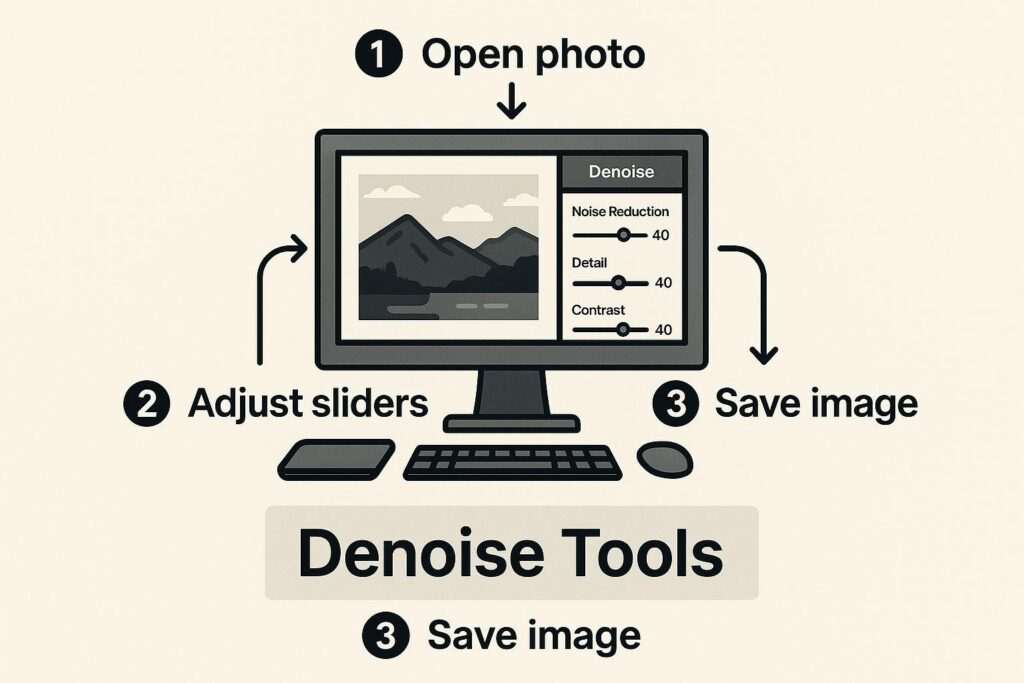
Its DeepPRIME technology is designed to reduce noise while recovering information and preserving detail. DxO’s current technology documentation describes DeepPRIME and DeepPRIME XD as two levels of processing, with XD designed for particularly demanding high-ISO and low-light images.
Key Features
- DeepPRIME noise reduction
- DeepPRIME XD
- RAW development
- Lens corrections
- Camera-specific corrections
- Local adjustments
- AI-powered processing
- Advanced optical corrections
Best For
Photographers who want a complete RAW editor rather than a dedicated denoise application alone.
Advantages
- Excellent RAW processing
- Powerful noise reduction
- Strong lens and camera corrections
- Suitable for demanding professional workflows
- Combines multiple editing functions
Limitations
- Larger learning curve than a simple denoise application
- More expensive than buying a basic noise-reduction tool alone
- May provide more features than photographers who only need denoising require
Overall Rating
★★★★★ 4.7/5
Luminar Neo
Luminar Neo takes a broader approach to AI photo editing rather than focusing exclusively on noise reduction.
Its AI-powered editing environment includes numerous automated tools for enhancing photographs, making it attractive to photographers who want noise reduction alongside creative and corrective editing capabilities.
Key Features
- AI-powered photo editing
- Noise reduction
- Portrait enhancement
- Sharpening
- RAW editing
- AI masking
- Creative effects
- Background and object tools
Best For
Beginners and photographers who want an all-in-one AI editing environment rather than dedicated noise-reduction software.
Advantages
- Beginner-friendly interface
- Large collection of AI tools
- Useful beyond noise reduction
- Creative editing capabilities
- RAW workflow support
Limitations
- Noise reduction isn’t its primary specialization
- Dedicated denoise applications may provide more specialized control
- Some photographers may prefer a simpler workflow
Overall Rating
★★★★☆ 4.4/5
AI Noise Reduction Software Comparison
| Software | AI Denoise | RAW Processing | Detail Preservation | Batch Processing | Best For |
|---|---|---|---|---|---|
| DxO PureRAW 6 | ⭐⭐⭐⭐⭐ | ⭐⭐⭐⭐⭐ | ⭐⭐⭐⭐⭐ | ⭐⭐⭐⭐⭐ | High-ISO RAW |
| Lightroom AI Denoise | ⭐⭐⭐⭐⭐ | ⭐⭐⭐⭐⭐ | ⭐⭐⭐⭐⭐ | ⭐⭐⭐⭐☆ | Lightroom users |
| Topaz Photo | ⭐⭐⭐⭐⭐ | ⭐⭐⭐⭐☆ | ⭐⭐⭐⭐⭐ | ⭐⭐⭐⭐☆ | Enhancement |
| DxO PhotoLab | ⭐⭐⭐⭐⭐ | ⭐⭐⭐⭐⭐ | ⭐⭐⭐⭐⭐ | ⭐⭐⭐⭐☆ | Complete RAW workflow |
| ON1 NoNoise AI | ⭐⭐⭐⭐⭐ | ⭐⭐⭐⭐⭐ | ⭐⭐⭐⭐☆ | ⭐⭐⭐⭐☆ | Wildlife & low light |
| Luminar Neo | ⭐⭐⭐⭐☆ | ⭐⭐⭐⭐☆ | ⭐⭐⭐⭐☆ | ⭐⭐⭐☆☆ | Beginners |
Important: These ratings are comparative editorial assessments rather than laboratory measurements. Actual results vary depending on camera sensor, ISO, RAW format, image exposure, computer hardware, and the amount of noise in the original photograph.
Which AI Noise Reduction Software Produces the Cleanest Results?
For demanding RAW files, DxO PureRAW 6 deserves particular attention because its current DeepPRIME XD3 technology combines denoising and demosaicing and now supports both Bayer and X-Trans sensors.
Lightroom AI Denoise is arguably the most convenient choice for photographers already working inside Lightroom because the feature is integrated into the existing workflow.
Topaz Photo is particularly attractive when noise reduction needs to be combined with additional AI enhancement and sharpening.
ON1 NoNoise AI is a compelling alternative for photographers who want dedicated noise reduction with standalone and plugin workflows.
Which One Should You Choose?
Choose Lightroom AI Denoise if:
- You already use Lightroom
- You want a simple workflow
- You primarily process RAW files
- You don’t want another application
Choose DxO PureRAW if:
- RAW image quality is your priority
- You photograph at very high ISO
- You shoot wildlife or sports
- You want camera and lens corrections
- You want to process RAW files before Lightroom
Choose Topaz Photo if:
- You want noise reduction and sharpening together
- You frequently work with difficult images
- You need broader AI enhancement tools
- You want more control over the denoising process
Choose ON1 NoNoise AI if:
- You want dedicated AI denoising
- You photograph wildlife or astrophotography
- You want standalone and plugin options
- You prefer flexible licensing choices
Choose DxO PhotoLab if:
- You want a complete RAW editor
- Noise reduction is only one part of your workflow
- You want advanced optical corrections
Choose Luminar Neo if:
- You’re a beginner
- You want an all-in-one AI editor
- You want creative AI tools alongside noise reduction
Professional Insight: Don’t judge AI denoise software only by how clean the image looks at 200% or 400% magnification. A file that appears slightly noisier at extreme zoom can look significantly more natural at normal viewing size. For professional photography, realistic texture, fine detail, and natural skin or wildlife features are often more important than achieving a completely noise-free image.
Best AI Noise Reduction Software by Photography Type
There is no single AI noise reduction application that is perfect for every photographer.
The best choice depends on the type of photography you shoot, the camera files you work with, your existing editing software, and how much control you want over the final result.
Here are the strongest choices for different photography workflows.
Best AI Noise Reduction for RAW Photography
Winner: DxO PureRAW
RAW photographers have some of the most demanding requirements because they want to preserve as much original sensor information as possible.
DxO PureRAW is particularly well suited to this workflow because it is designed specifically around RAW processing. Its DeepPRIME technology performs denoising and demosaicing together, while DxO’s camera and lens corrections can improve the file before it reaches your main editing application.
This makes it especially useful when your workflow looks like:
Camera RAW → DxO PureRAW → Lightroom/Photoshop → Final Export
Best Alternative
Adobe Lightroom AI Denoise is an excellent alternative if you prefer to keep the entire process inside Lightroom.
Best For
- Professional RAW workflows
- High-ISO photographs
- Wildlife
- Sports
- Weddings
- Event photography
Best AI Noise Reduction for Lightroom Users
Winner: Adobe Lightroom AI Denoise
If Lightroom is already the center of your photography workflow, using its built-in AI Denoise is extremely convenient.
You don’t need to export the image to another application, process it separately, and then import the result.
Instead, you can perform AI denoising as part of your normal RAW editing workflow.
This is particularly useful for photographers who process large numbers of images and want to avoid adding another application to their workflow.
Best For
- Lightroom users
- Wedding photographers
- Portrait photographers
- Event photographers
- High-volume photographers
- Beginners
Consider DxO PureRAW Instead If:
You regularly work with extremely high-ISO RAW files and want specialized RAW preprocessing before Lightroom.
Best AI Noise Reduction for Wildlife Photography
Winner: DxO PureRAW
Wildlife photographers often face a difficult combination of long focal lengths, fast shutter speeds, limited light, and high ISO settings.
For example, photographing a bird at dawn may require ISO 6400 or higher simply to maintain a shutter speed fast enough to freeze wing movement.
The problem is that wildlife photography also contains extremely fine details.
You need to preserve:
- Feathers
- Fur
- Whiskers
- Eyes
- Scales
- Fine textures
Aggressive noise reduction can make these details look artificial.
DxO PureRAW is particularly attractive for this workflow because its RAW-focused processing and DeepPRIME technology are designed to reduce noise while preserving fine detail.
Strong Alternative
Topaz Photo is also useful when the image needs additional sharpening or enhancement after noise reduction.
Wildlife Workflow
RAW File → AI Denoise → Exposure/Color Correction → Sharpening → Export
Best AI Noise Reduction for Wedding Photography
Winner: Adobe Lightroom AI Denoise
Wedding photographers often need to process hundreds or thousands of photographs.
Speed and workflow efficiency therefore matter almost as much as image quality.
Lightroom AI Denoise has an important advantage for this type of photographer because it is already integrated into the Lightroom environment.
A wedding workflow might look like:
Import → Cull → AI Denoise Selected Images → Edit → Export
You don’t necessarily need to send every photograph through AI denoising.
Instead, apply it selectively to photographs where noise is actually visible.
Best For
- Reception photography
- Church ceremonies
- Indoor portraits
- Dance floors
- Evening wedding photography
- High-ISO event photography
Alternative
ON1 NoNoise AI can be useful if you want a dedicated noise reduction application or plugin-based workflow. ON1 currently supports standalone operation and integration with Lightroom and Photoshop.
Best AI Noise Reduction for Astrophotography
Winner: ON1 NoNoise AI
Astrophotography presents unique noise-reduction challenges.
Photographers need to reduce noise while preserving extremely faint details such as stars and subtle structures in the night sky.
ON1 NoNoise AI is worth considering for this type of workflow because it is specifically designed for high-ISO and low-light images and provides dedicated noise-reduction controls.
However, astrophotographers should avoid excessive AI processing.
Too much denoising can remove faint stars or create unnatural patterns in the sky.
Recommended Workflow
RAW → Basic Exposure Correction → AI Noise Reduction → Color Correction → Local Adjustments → Final Sharpening
Always compare the processed image against the original at 100% magnification.
Best AI Noise Reduction for Portrait Photography
Winner: Adobe Lightroom AI Denoise
Portrait photographers need to be particularly careful with AI noise reduction.
Human skin contains natural texture. Excessive processing can make skin look plastic or artificially smooth.
Lightroom’s integrated workflow makes it easy to apply moderate noise reduction while maintaining control over the rest of the portrait edit.
Important Tip
Don’t use maximum noise reduction simply because the software allows it.
A small amount of natural grain is usually less distracting than completely artificial-looking skin.
Best For
- Indoor portraits
- Low-light portraits
- Wedding portraits
- Environmental portraits
- High-ISO studio alternatives
Best AI Noise Reduction for Sports Photography
Winner: DxO PureRAW
Sports photographers often need high shutter speeds even when lighting is poor.
That means ISO can increase quickly.
A typical indoor sports photograph might require:
Fast Shutter Speed + High ISO + Long Lens
The resulting RAW file can contain significant luminance and color noise.
AI denoising can clean the file while preserving important details such as:
- Athlete faces
- Clothing
- Hair
- Equipment
- Ball details
- Background separation
DxO PureRAW is particularly useful when RAW quality is the priority.
Alternative
Topaz Photo is worth considering when you also need AI sharpening after noise reduction.
Best AI Noise Reduction for High-ISO Images
Winner: DxO PureRAW
If your primary concern is getting the cleanest possible result from difficult high-ISO RAW files, DxO PureRAW is one of the strongest options to consider.
Its DeepPRIME technology is specifically designed around RAW image processing and noise reduction.
However, high-ISO performance should not be judged solely by how smooth the image becomes.
The better question is:
How much noise can the software remove while preserving realistic detail?
That is particularly important for wildlife, sports, and professional event photography.
Best AI Noise Reduction for JPEG Photos
Winner: Topaz Photo
JPEG files have already gone through camera processing and compression.
That means photographers have less original information available compared with RAW files.
A dedicated enhancement application can therefore be useful when working with:
- JPEG photographs
- Older photographs
- Social media images
- Compressed files
- Cropped images
- Images received from clients
Topaz Photo is particularly interesting here because its workflow extends beyond noise reduction into sharpening and other AI-based enhancement.
Important Limitation
AI software cannot completely recover information destroyed by severe JPEG compression.
The goal is improvement, not perfect restoration.
Best Budget-Friendly AI Noise Reduction Software
Winner: ON1 NoNoise AI
For photographers who want dedicated AI noise reduction without committing to a large all-in-one editing ecosystem, ON1 NoNoise AI is worth considering.
ON1 currently offers NoNoise AI as a standalone application and plugin, while also including it in ON1 Photo RAW workflows. The company also maintains perpetual-license options for its software ecosystem.
This can make it particularly attractive to photographers who prefer to avoid adding another recurring subscription.
Best For
- Hobby photographers
- Beginners
- Wildlife enthusiasts
- Low-light photographers
- Photographers seeking a standalone denoise tool
Best AI Noise Reduction Software for Beginners
Winner: Adobe Lightroom AI Denoise
Beginners generally benefit from simplicity.
Learning a separate application, understanding multiple AI models, and managing additional exports can complicate the workflow.
If you already use Lightroom, the built-in Denoise feature removes much of that complexity.
The process can be as simple as:
Open RAW → Apply Denoise → Continue Editing
That makes Lightroom one of the easiest entry points into AI-powered noise reduction.
Best AI Noise Reduction for Professional Photographers
Winner: DxO PureRAW + Lightroom
Professional photographers don’t necessarily need to choose one application.
A combination can often produce a better workflow.
For example:
RAW → DxO PureRAW → Lightroom → Photoshop → Final Export
DxO can handle the initial RAW processing and noise reduction, while Lightroom can handle cataloging, organization, color correction, masking, and batch editing.
Photoshop can then be used for detailed retouching when required.
This approach is particularly useful for photographers who regularly work with demanding high-ISO files.
Best AI Noise Reduction Software for All-in-One Editing
Winner: ON1 Photo RAW
If you don’t want to maintain several separate applications, ON1 Photo RAW provides a broader editing environment with AI-powered tools, including NoNoise AI.
ON1 currently integrates NoNoise AI into its Photo RAW ecosystem, giving photographers access to noise reduction alongside RAW processing, masking, effects, and other editing features.
This makes it an interesting alternative to photographers who want a more complete Lightroom-style workflow without building a large collection of separate plugins.
AI Noise Reduction vs Traditional Noise Reduction
AI denoise isn’t automatically better in every situation.
Traditional noise reduction can still be perfectly adequate for photographs with mild noise.
The advantage of AI becomes more obvious when the photograph contains:
- Heavy high-ISO noise
- Fine textures
- Underexposed shadows
- Difficult color noise
- Wildlife detail
- Complex low-light scenes
For mild noise, traditional Lightroom adjustments may be all you need.
For severe noise, dedicated AI tools can provide a much larger improvement.
Should You Apply AI Noise Reduction to Every Photo?
No.
This is one of the biggest mistakes photographers make when discovering AI denoise software.
If a photograph is already clean at ISO 100 or ISO 200, aggressive AI processing may provide little benefit.
It can even introduce unnecessary processing artifacts or soften natural textures.
Instead, apply AI denoising when it solves a visible problem.
Good Candidates
- ISO 1600+
- ISO 3200+
- ISO 6400+
- Underexposed photographs
- Dark indoor scenes
- Wildlife photographs
- Night photography
- Concert photographs
The exact ISO threshold depends on your camera, exposure, sensor size, and personal quality standards.
Recommended AI Noise Reduction Workflow
A consistent workflow can help you achieve more natural results.
Step 1: Start With the Original File
Whenever possible, begin with the camera’s original RAW file.
RAW gives the denoising software more information to work with than a heavily compressed JPEG.
Step 2: Correct Exposure Carefully
Before judging the noise, make sure the exposure is reasonably balanced.
An image that is dramatically underexposed may appear much noisier than necessary.
Step 3: Apply AI Noise Reduction
Use the software’s recommended or moderate setting first.
Don’t immediately select the strongest available mode.
Step 4: Inspect Important Details
Zoom to 100% and inspect:
- Eyes
- Hair
- Skin
- Feathers
- Fur
- Foliage
- Fine lines
- Architectural details
Look for signs of excessive processing.
Step 5: Compare Before and After
Turn the AI processing on and off.
Ask:
Did the image become cleaner without looking less realistic?
If the answer is yes, the setting is probably appropriate.
Step 6: Apply Sharpening Carefully
After denoising, some photographs may benefit from sharpening.
However, excessive sharpening can bring noise back into the image.
AI sharpening tools can sometimes help distinguish actual detail from residual noise, but they should still be applied conservatively.
Step 7: Complete Your Normal Edit
Continue with:
- White balance
- Exposure
- Contrast
- Highlights
- Shadows
- Color
- Masking
- Retouching
Step 8: Export at the Required Resolution
Your final export should match its intended use.
A photograph destined for Instagram doesn’t need the same output settings as a large-format print.
How to Avoid Overprocessing AI-Denoised Photos
The most common mistake is trying to eliminate 100% of visible noise.
Photography does not need to be completely noise-free.
Some natural grain can actually make an image look more realistic.
Avoid These Problems
- Plastic-looking skin
- Artificial fur
- Missing feathers
- Smudged foliage
- Watercolor-like textures
- Strange repeating patterns
- Over-sharpened edges
- AI-generated-looking details
Instead, aim for a natural balance between:
Noise Reduction + Detail Preservation + Realistic Texture
What Is the Best AI Noise Reduction Software Overall?
For most serious photographers, the answer depends on the workflow.
Best Overall for RAW
DxO PureRAW
Best for Lightroom Users
Adobe Lightroom AI Denoise
Best for AI Enhancement
Topaz Photo
Best Dedicated Alternative
ON1 NoNoise AI
Best Complete RAW Editor
DxO PhotoLab
Best Beginner-Friendly AI Editor
Luminar Neo
There is no universal winner because each application solves a slightly different problem.
A wildlife photographer processing thousands of high-ISO RAW files may prefer a different application from a portrait photographer who only occasionally needs noise reduction.
How to Choose the Right AI Noise Reduction Software
Before buying anything, answer these questions.
1. What File Type Do You Shoot?
If you primarily shoot RAW, prioritize applications with strong RAW processing.
If you mostly shoot JPEG, prioritize tools designed for non-RAW enhancement.
2. What Software Do You Already Use?
If you already pay for Lightroom, its built-in AI Denoise may be enough.
If you use Photoshop heavily, a dedicated plugin may fit your workflow better.
3. How Much Noise Do You Normally Have?
For ISO 100–800 images, basic noise reduction may be sufficient.
For ISO 3200–12800 images, dedicated AI denoise can provide much greater benefits.
4. Do You Process Hundreds of Images?
If yes, batch processing and workflow speed become extremely important.
5. Do You Need More Than Noise Reduction?
If you also need:
- Sharpening
- Upscaling
- Deblurring
- Image enhancement
a broader AI application such as Topaz Photo may make more sense.
6. Do You Prefer Subscription or Perpetual Licensing?
This can significantly affect the long-term cost.
Software licensing models change, so always check the current pricing before purchasing.
AI Noise Reduction Buying Checklist
Before choosing your software, check whether it offers:
- ✅ RAW support
- ✅ High-ISO processing
- ✅ AI-powered denoising
- ✅ Detail preservation
- ✅ Color noise reduction
- ✅ Batch processing
- ✅ Lightroom integration
- ✅ Photoshop integration
- ✅ Camera compatibility
- ✅ Fast processing
- ✅ Flexible export options
- ✅ Reasonable licensing cost
The best AI noise reduction software isn’t necessarily the one with the longest feature list.
It is the one that fits your actual photography workflow and consistently produces natural-looking results.
Professional Tip: Don’t Chase a Completely Noise-Free Image
A completely noise-free photograph is not always the best photograph.
If you remove every trace of grain, the image can lose the natural texture that makes it look photographic.
This is particularly noticeable with:
- Skin
- Feathers
- Fur
- Hair
- Foliage
- Fabric
Professional photographers should therefore judge AI denoising based on the final image, not just the amount of noise removed.
The goal should be:
Less distracting noise + preserved detail + natural texture.
Not:
Zero noise at any cost.
How to Choose the Best AI Noise Reduction Software
Choosing AI noise reduction software isn’t simply about finding the application that removes the most noise.
The best tool should fit your camera files, editing workflow, photography style, computer hardware, and budget.
Before purchasing, consider the following factors.
1. Check RAW Compatibility
If you photograph in RAW, make sure the software supports your camera’s RAW format.
RAW support is particularly important for photographers who want to preserve maximum image information during denoising.
Always check the manufacturer’s current supported-camera list before purchasing because newly released cameras may require software updates.
2. Consider Your Existing Editing Workflow
If you already use Lightroom, Lightroom AI Denoise may be sufficient.
If you use Photoshop extensively, a plugin-based solution may be more convenient.
If you want to process RAW files before importing them into Lightroom, DxO PureRAW can fit naturally into that workflow.
If you want an all-in-one editing environment, applications such as ON1 Photo RAW may make more sense.
3. Look at Detail Preservation
Noise removal is only half the job.
A good AI denoising application should preserve important details such as:
- Hair
- Skin
- Feathers
- Fur
- Foliage
- Fabric
- Fine architectural details
Always compare images at 100% magnification before deciding which software produces the most natural results.
4. Check Batch Processing
Professional photographers can have hundreds or thousands of photographs from a single shoot.
Batch processing can therefore save significant time.
Look for software that allows you to process multiple images efficiently and maintain consistent settings.
5. Consider Processing Speed
AI denoising can be computationally demanding.
Processing speed depends on:
- CPU
- GPU
- RAM
- Image resolution
- RAW file size
- AI model
- Number of images processed
If you regularly process large photography collections, hardware requirements should be part of your buying decision.
6. Compare Licensing
AI photo software uses several different licensing models.
Depending on the application, you may encounter:
- Monthly subscriptions
- Annual subscriptions
- Perpetual licenses
- Paid upgrades
- Bundled software plans
Licensing policies can change, so check the developer’s current pricing page before purchasing.
For example, ON1 currently offers both perpetual-license and subscription options across its software ecosystem.
7. Try Before You Buy
A free trial can be more useful than reading dozens of comparisons.
Take several of your own difficult photographs and test each application using the same files.
Good test images include:
- ISO 6400 wildlife photographs
- Underexposed wedding images
- Night photographs
- Indoor portraits
- Concert photographs
- Astrophotography
- High-ISO sports photographs
Your own RAW files are a much better test than sample images supplied by software companies.
AI Noise Reduction Settings: How Much Should You Use?
There is no universal percentage or slider value that works for every photograph.
The appropriate setting depends on:
- ISO
- Exposure
- Camera sensor
- Subject
- Image resolution
- Final output size
- Personal preference
Start with a moderate setting.
Then compare the result against the original.
If You See:
Too much grain: Increase denoising slightly.
Lost texture: Reduce denoising.
Plastic-looking skin: Reduce the strength.
Artificial feathers or fur: Reduce processing.
Color speckles: Increase color-noise reduction if available.
Soft details: Consider reducing denoising or applying carefully controlled sharpening afterward.
The objective is not to eliminate every pixel of noise.
The objective is to produce a photograph that looks clean and natural at its intended viewing size.
Should You Denoise Before or After Editing?
In most RAW workflows, it makes sense to perform AI denoising relatively early in the editing process.
A practical workflow is:
RAW File → AI Denoise → Exposure & White Balance → Color Editing → Local Adjustments → Sharpening → Export
However, the ideal sequence can vary between applications.
Some software performs denoising and RAW demosaicing together, while other tools work as enhancement applications after the RAW file has already been processed.
The important thing is to avoid repeatedly processing and exporting the same image between multiple applications unless necessary.
Should You Sharpen Before or After Noise Reduction?
In most cases, noise reduction should come before final sharpening.
Sharpening a heavily noisy image can make unwanted grain more visible.
A better approach is:
Noise Reduction → Detail Recovery → Final Sharpening
Some AI applications combine these processes or provide noise-aware sharpening models.
For example, AI sharpening tools may analyze the image to distinguish actual edges from noise before applying sharpening.
Even then, always inspect the final result carefully because excessive sharpening can create halos and unnatural textures.
Can AI Noise Reduction Recover Underexposed Photos?
AI noise reduction can significantly improve an underexposed image, but there is a limit.
If an image contains usable information in the shadows, AI processing can help make those areas cleaner.
However, if a photograph is severely underexposed and contains almost no recoverable information, denoise software cannot recreate the original scene perfectly.
This is why exposure remains important even when using advanced AI editing tools.
AI can improve captured information. It cannot replace captured information.
Can AI Noise Reduction Remove Grain From Film Photos?
Some AI image-enhancement applications can reduce visible grain in scanned film photographs or JPEG images.
However, film grain is different from digital sensor noise.
If you’re working with scanned negatives, removing all grain may also remove the character and texture that make film photography distinctive.
For film scans, use AI processing conservatively and compare the result with the original scan.
AI Noise Reduction for Social Media Photos
AI denoising can also be useful for photographs intended for:
- Websites
- Blogs
- Online portfolios
However, don’t over-process an image simply because you’re going to resize it.
At smaller display sizes, moderate noise often becomes far less noticeable.
A photograph that looks noisy at 100% magnification may look perfectly clean after being resized for social media.
AI Noise Reduction for Printing
Printing introduces another consideration.
A photograph that looks excellent on a monitor may reveal different characteristics when printed at a large size.
Before sending an image to print:
- Apply moderate noise reduction.
- Inspect important details.
- Apply appropriate output sharpening.
- Check the final resolution.
- Soft-proof when appropriate.
- Review the image at a realistic print size.
Avoid judging the photograph only at extreme magnification.
The final print is what matters.
Common AI Noise Reduction Mistakes
Even the best software can produce poor results when used incorrectly.
Using Maximum Denoise
Maximum noise reduction may make an image look impressively clean at first glance.
But it can also destroy texture.
Use the minimum amount of processing needed to achieve the desired result.
Denoising Every Photograph
Not every photograph needs AI denoise.
Clean ISO 100 photographs may gain very little from aggressive AI processing.
Ignoring the Original Image
Always compare the processed image with the original.
Without a before-and-after comparison, it is easy to miss subtle detail loss.
Judging Only at 400%
Extreme magnification can make tiny imperfections appear much more important than they actually are.
Check the photograph at:
- 100%
- Normal screen size
- Final export size
Ignoring Skin Texture
Portrait photographers should be particularly careful.
Natural skin contains texture.
Removing too much noise can make skin appear artificial.
Over-Sharpening After Denoising
After noise has been removed, photographers may be tempted to add heavy sharpening.
This can create:
- Halos
- Crunchy edges
- Artificial textures
- Increased noise visibility
Use sharpening carefully.
Is Free AI Noise Reduction Software Good Enough?
Free tools can be useful for photographers who only occasionally encounter noisy images.
However, dedicated commercial applications generally provide more advanced AI models, RAW support, workflow integration, batch processing, and specialized controls.
If you rarely shoot above ISO 800, a free or built-in solution may be enough.
If you regularly photograph at ISO 3200, 6400, 12800, or higher, dedicated AI denoise software becomes much more valuable.
Frequently Asked Questions
What is the best AI noise reduction software for photographers?
There is no single winner for every photographer. DxO PureRAW is particularly strong for RAW processing and high-ISO files, Lightroom AI Denoise is highly convenient for Lightroom users, Topaz Photo offers broader AI enhancement, and ON1 NoNoise AI provides a dedicated denoising workflow.
Is AI noise reduction better than Lightroom’s normal noise reduction?
AI noise reduction can produce better results on difficult high-ISO images because it can analyze image content more intelligently than simple traditional noise-reduction adjustments. However, conventional noise reduction can still be sufficient for photographs with mild noise.
What is the best AI denoise software for wildlife photography?
DxO PureRAW is a strong choice for high-ISO RAW wildlife photographs because wildlife images often require both significant noise reduction and preservation of fine detail. Topaz Photo and ON1 NoNoise AI are also worth considering.
What is the best AI noise reduction for Lightroom?
Lightroom’s built-in AI Denoise is the most convenient option for photographers who already use Lightroom because it avoids the need to move images into another application.
Can AI noise reduction remove ISO 6400 noise?
Yes. Modern AI denoise applications can significantly reduce noise in ISO 6400 photographs. The final result depends on the camera, exposure, sensor size, image resolution, and amount of original noise.
Does AI noise reduction reduce image quality?
It can if used too aggressively. Excessive denoising may remove fine textures and produce artificial-looking details. The best results usually come from moderate processing.
Can AI denoise work on JPEG photos?
Yes. Several applications support JPEG and other non-RAW formats. However, RAW files generally provide more original information and greater flexibility for advanced denoising.
Should I use AI noise reduction before sharpening?
Generally, yes. Reducing noise before final sharpening helps prevent sharpening from emphasizing unwanted grain.
Is AI noise reduction worth paying for?
For photographers who regularly shoot in low light or at high ISO, dedicated AI noise reduction can be worth the investment. Photographers who mainly shoot at low ISO in controlled lighting may not need specialized software.
Does AI noise reduction work for astrophotography?
Yes, but it should be used carefully. Excessive denoising can remove faint stars and subtle details. Always compare the processed image with the original.
Why Trust The Candid Shoot?
At The Candid Shoot, our photography guides are designed to help photographers understand modern photography technology and make informed equipment and software decisions.
For this guide, we compared the capabilities and workflows of major AI noise reduction applications, including Adobe Lightroom, DxO PureRAW, DxO PhotoLab, Topaz Photo, ON1 NoNoise AI, and Luminar Neo.
Our comparison considers practical factors that matter to photographers, including:
- AI noise reduction capabilities
- RAW processing
- Detail preservation
- High-ISO performance
- Workflow integration
- Batch processing
- Editing compatibility
- Ease of use
- Photography-specific applications
We don’t consider one application to be the best for every photographer. Different photographers have different cameras, editing workflows, budgets, and image-quality requirements.
Software features and licensing can also change over time. We therefore recommend checking the developer’s official documentation and current product information before making a purchase.
Our goal is to explain the technology clearly so you can choose the software that actually fits your photography workflow.
How We Researched This Guide
We evaluated AI noise reduction software based on the features and workflows most relevant to photographers.
Our research considered:
- Official software documentation
- Current product information
- RAW processing capabilities
- AI denoising technologies
- Supported image formats
- Workflow integrations
- Batch-processing capabilities
- High-ISO photography use cases
- Wildlife and low-light workflows
- Detail-preservation considerations
- Current software developments
We also considered how each application fits into real photography workflows rather than evaluating noise reduction in isolation.
Because software capabilities, supported cameras, pricing, and licensing can change, photographers should verify the latest information from the software developer before purchasing.
Final Verdict
The best AI noise reduction software for photographers depends on the workflow you already use.
If you want the strongest RAW-focused workflow, DxO PureRAW is one of the most compelling choices, particularly for high-ISO wildlife, sports, wedding, and low-light photography.
If you’re already a Lightroom user, Adobe Lightroom AI Denoise is arguably the easiest option because it keeps the entire process inside your existing editing environment.
If you want a dedicated AI enhancement application that goes beyond noise reduction, Topaz Photo is a strong option because it combines denoising with additional image-enhancement capabilities.
ON1 NoNoise AI is another strong choice for photographers who want dedicated AI noise reduction with standalone and plugin workflows. ON1 currently positions NoNoise for high-ISO and low-light work, including wildlife, night scenes, and concerts.
For photographers who want a complete RAW editing environment with advanced noise reduction, DxO PhotoLab is also worth considering.
The most important point is that you don’t need the software that removes the most noise.
You need the software that removes enough noise while keeping your photographs looking natural.
Conclusion
AI noise reduction has become an important part of the modern photography workflow.
Photographers can now recover much cleaner-looking images from high-ISO and low-light situations that would have produced significantly more visible noise with older processing techniques.
However, better noise reduction doesn’t mean eliminating every trace of grain.
The best results come from maintaining a balance between:
Noise Reduction + Detail Preservation + Natural Texture
For Lightroom users, the built-in AI Denoise feature may be all you need.
For demanding RAW workflows, DxO PureRAW is a powerful option.
For broader AI image enhancement, Topaz Photo is worth considering.
For dedicated denoising with flexible workflow options, ON1 NoNoise AI remains a strong alternative.
Before buying anything, test the software using your own photographs. Use difficult high-ISO images, compare the results at 100%, and then evaluate them at normal viewing size.
Most importantly, remember that AI noise reduction is a finishing tool—not a replacement for good exposure, accurate focus, appropriate shutter speed, and careful camera technique.
When used correctly, AI denoise can help photographers turn noisy, difficult files into cleaner and more usable photographs without sacrificing the details that make those images valuable.
References:
- Adobe Lightroom Classic — Enhance Details and Denoise
- DxO PureRAW — Official Website
- DxO DeepPRIME Technology
- Topaz Photo — Official Website
- Topaz Photo — Noise Reduction Documentation
- ON1 NoNoise AI — Official Website
- Luminar Neo — Official Website
Note: Software features, supported cameras, pricing, licensing, and system requirements may change. Check the official developer website for the latest information before purchasing or relying on a specific feature.


Leave a Reply