

Read our in-depth AfterShoot Review covering AI photo culling, editing, pricing, Lightroom integration, pros, cons, and whether it’s worth it for photographers in 2026.
Table of Contents
Introduction
Photographers love capturing unforgettable moments—but few enjoy spending hours sorting through thousands of images after every shoot. Whether you’re photographing weddings, portraits, corporate events, or sports, manually reviewing every photo can quickly become one of the most time-consuming parts of your workflow.
This is where AfterShoot has become a game-changer. Designed specifically for photographers, AfterShoot uses artificial intelligence to automatically analyze, organize, and select the best images from large photo collections. Instead of manually checking every frame for sharpness, focus, facial expressions, or duplicate shots, the software performs these tasks in minutes, helping photographers start editing much sooner.
Unlike many cloud-based AI tools, AfterShoot processes images locally on your computer, offering faster performance, greater privacy, and the ability to work even without an internet connection. It also integrates seamlessly with Adobe Lightroom Classic, making it easy to move selected photos directly into your editing workflow.
But does it really live up to the hype? Is it accurate enough to trust with important client work? And is it worth paying for compared to competitors like Narrative Select, Imagen, or FilterPixel?

In this comprehensive AfterShoot Review, we’ll examine its AI culling accuracy, editing capabilities, Lightroom integration, performance, pricing, ease of use, and overall value. By the end, you’ll know whether AfterShoot is the right AI assistant for your photography business.
Quick Answer
AfterShoot is one of the best AI photo culling software solutions available for photographers in 2026. It delivers exceptionally fast offline AI culling, accurate blur and focus detection, intelligent duplicate grouping, and seamless Lightroom integration. While its AI editing features continue to improve, its biggest strength remains helping photographers save hours by automating image selection. For wedding, portrait, and event photographers, AfterShoot is an excellent investment that can significantly streamline post-production.
Overall Rating
| Category | Rating | Comments |
|---|---|---|
| Ease of Use | ⭐⭐⭐⭐⭐ | Clean interface with a beginner-friendly workflow. |
| AI Photo Culling | ⭐⭐⭐⭐⭐ | Excellent detection of blur, focus, duplicates, and closed eyes. |
| AI Photo Editing | ⭐⭐⭐⭐☆ | Consistent results with personalized editing profiles. |
| Lightroom Integration | ⭐⭐⭐⭐⭐ | Smooth export and import workflow with Lightroom Classic. |
| Performance | ⭐⭐⭐⭐⭐ | Extremely fast local processing without cloud uploads. |
| Pricing | ⭐⭐⭐⭐☆ | Good value considering the time saved for professionals. |
| Features | ⭐⭐⭐⭐⭐ | Comprehensive set of AI tools for culling and workflow automation. |
| Overall Rating | ⭐⭐⭐⭐⭐ (4.9/5) | One of the strongest AI workflow tools for photographers. |
Editor’s Verdict: AfterShoot is our top recommendation for photographers who want to dramatically reduce photo culling time without sacrificing accuracy. Its offline AI processing, fast performance, and seamless Lightroom integration make it one of the most efficient workflow tools available today.
What Is AfterShoot?
AfterShoot is an AI-powered photo culling and editing software developed specifically for photographers who want to automate repetitive post-production tasks. Instead of spending hours reviewing thousands of images, AfterShoot analyzes your photos using artificial intelligence and recommends the strongest shots based on technical quality and visual consistency.
The software evaluates factors such as image sharpness, focus accuracy, blur, duplicate frames, closed eyes, and facial expressions before grouping similar images and highlighting the best selections. This allows photographers to review galleries much faster while maintaining complete control over the final image selection.
One of AfterShoot’s biggest advantages is its offline AI processing. Unlike cloud-based platforms that require uploading large RAW files, AfterShoot performs its analysis directly on your computer. This not only improves processing speed but also enhances privacy, since your client images remain stored locally.
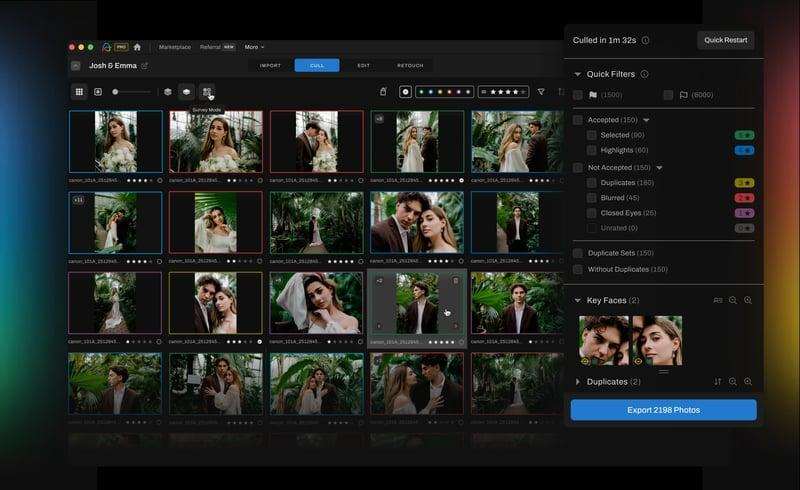
Beyond photo culling, AfterShoot also offers AI-assisted photo editing. By learning your editing style from previous Lightroom catalogs, it can apply consistent adjustments across entire galleries, reducing editing time while preserving your unique look.
Key Highlights
- AI-powered photo culling for RAW and JPEG images
- Offline processing with no cloud uploads required
- Automatic blur and focus detection
- Closed-eye and duplicate image detection
- Intelligent grouping of similar photos
- Personalized AI photo editing
- Adobe Lightroom Classic integration
- Fast workflow for weddings, portraits, events, and commercial photography
- Compatible with both Windows and macOS
Whether you’re a full-time professional photographer or an enthusiast managing large photo libraries, AfterShoot is designed to help you spend less time sorting images and more time focusing on creative editing and client delivery.
Key Features of AfterShoot
AfterShoot is more than just an AI photo culling application. It combines intelligent image selection, workflow automation, and AI-assisted editing into a single platform designed to help photographers reduce post-production time without compromising quality.
Below are the features that make AfterShoot one of the most popular AI tools among professional photographers.
AI Photo Culling
The core strength of AfterShoot is its AI-powered culling engine. Instead of manually reviewing every image, the software analyzes your entire gallery and recommends the strongest photos based on technical quality.
It evaluates factors such as:
- Image sharpness
- Focus accuracy
- Motion blur
- Camera shake
- Duplicate images
- Burst sequences
- Facial expressions
- Closed eyes
Within minutes, thousands of images are organized into manageable groups, allowing photographers to review only the best selections instead of every individual frame.
Blur and Focus Detection
One of the biggest time-saving features is AfterShoot’s ability to identify blurry or out-of-focus images automatically.
Whether the blur is caused by subject movement, missed autofocus, or camera shake, the AI flags technically weak photos, making it much easier to remove unusable shots before editing begins.
This feature is especially valuable for:
- Wedding photographers
- Sports photographers
- Wildlife photographers
- Event photographers
where burst shooting often produces multiple similar images with varying levels of sharpness.
Duplicate & Similar Photo Detection
Photographers often capture several nearly identical frames to ensure they don’t miss the perfect moment.
AfterShoot automatically groups these sequences together and highlights the strongest image based on overall technical quality.
Instead of comparing dozens of nearly identical photos, photographers can quickly review one recommended image from each group while still having the option to override AI suggestions.
Closed-Eye & Facial Expression Detection
For portrait, family, and wedding photographers, facial expressions are just as important as technical sharpness.
AfterShoot’s AI analyzes faces within each image and helps identify:
- Closed eyes
- Blinking
- Poor expressions
- Better smiling frames
- Stronger facial visibility
This dramatically reduces the time spent zooming into individual faces during manual review.
AI-Assisted Photo Editing
In addition to culling, AfterShoot also offers AI-powered editing.
Unlike preset-based editing, the software learns your editing style from previous Lightroom catalogs and applies similar adjustments automatically.
The AI can replicate your preferences for:
- Exposure
- Contrast
- White balance
- Highlights
- Shadows
- Color balance
- Tone adjustments
The result is a gallery that closely matches your personal editing style while reducing repetitive editing work.
Personalized AI Profiles
One of AfterShoot’s standout features is its ability to create personalized AI profiles.
Instead of applying generic edits, the software studies your previous edits to understand how you typically process photos.
Over time, the AI becomes increasingly accurate, delivering edits that feel consistent with your established workflow.
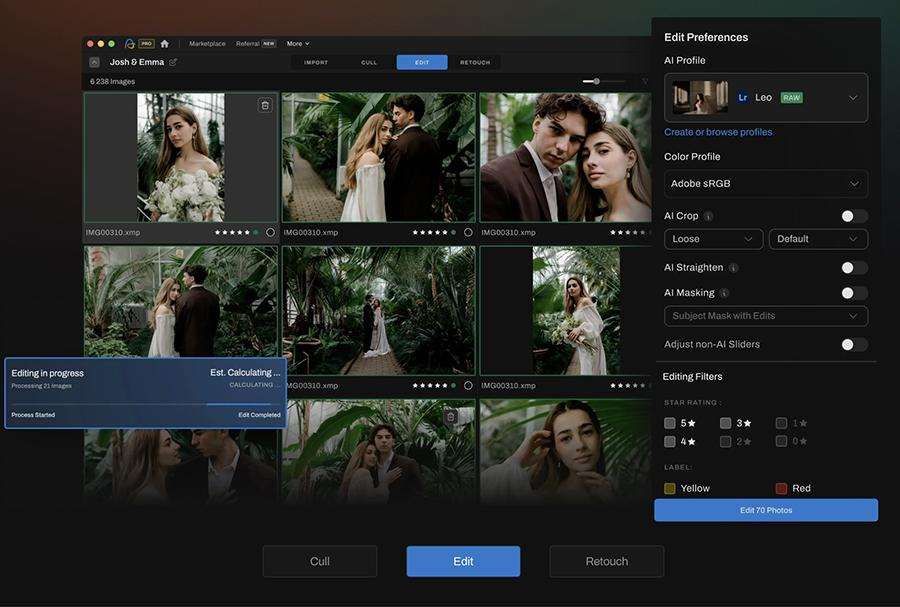
This makes it particularly useful for photographers who want to maintain a recognizable editing style across every client gallery.
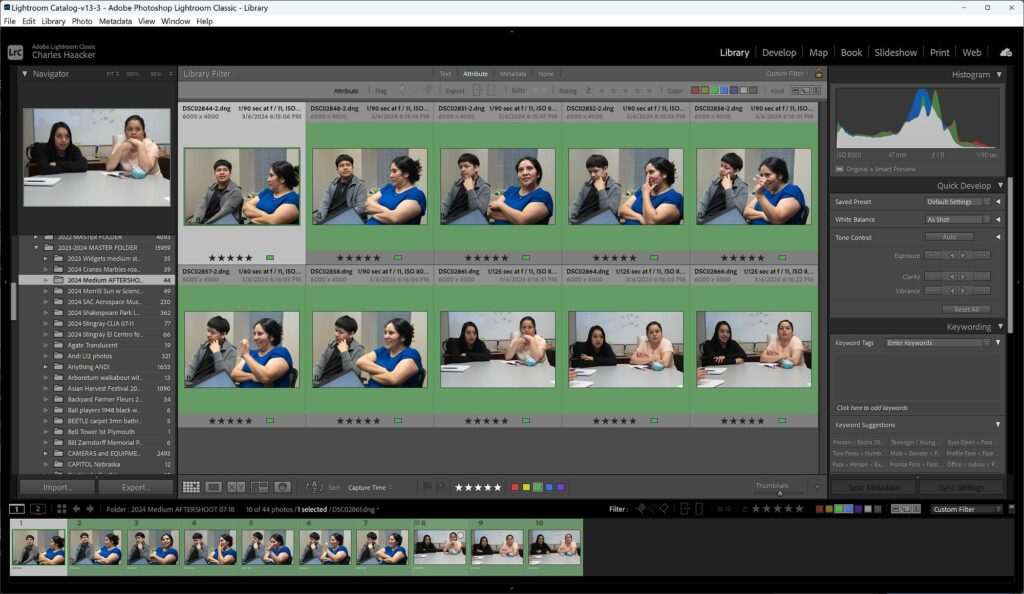
Adobe Lightroom Classic Integration
AfterShoot integrates seamlessly with Adobe Lightroom Classic.
A typical workflow looks like this:
- Import photos into AfterShoot.
- Run AI culling.
- Review the AI recommendations.
- Export selected images directly to Lightroom.
- Apply AI edits or continue manual editing.
- Deliver the finished gallery.
This smooth integration eliminates unnecessary file transfers and fits naturally into existing Lightroom-based workflows.
Offline AI Processing
Unlike many cloud-based competitors, AfterShoot performs AI analysis directly on your computer.
This offers several advantages:
- Faster processing
- No internet dependency
- Better privacy for client photos
- No lengthy RAW file uploads
- Reduced bandwidth usage
For photographers working on location or handling confidential client work, offline processing is a significant advantage.
RAW File Support
AfterShoot supports RAW files from most major camera manufacturers, including:
- Canon
- Nikon
- Sony
- Fujifilm
- Panasonic
- OM System
- Leica
- Pentax
- Sigma
It also supports JPEG workflows, making it suitable for photographers with different shooting preferences.
Batch Workflow Automation
High-volume photographers often return home with thousands of images after a single assignment.
Instead of reviewing each gallery individually, AfterShoot automates repetitive tasks such as:
- Image analysis
- Grouping similar photos
- Keeper selection
- Reject identification
- AI editing
- Lightroom export
For photographers handling multiple weddings or events every week, this automation can save dozens of hours every month.
User Interface & Ease of Use
One of AfterShoot’s biggest strengths is its clean, photographer-friendly interface. Unlike some AI software that can feel overwhelming, AfterShoot focuses on simplicity without sacrificing powerful features.
The dashboard is well organized, with clearly labeled sections for importing photos, running AI culling, reviewing recommendations, and exporting selected images. Even first-time users can navigate the software with minimal learning.
Large image previews, keyboard shortcuts, and responsive performance make reviewing thousands of photos surprisingly smooth. The software groups similar images automatically, allowing photographers to compare sequences quickly and accept or reject AI suggestions with just a few clicks.
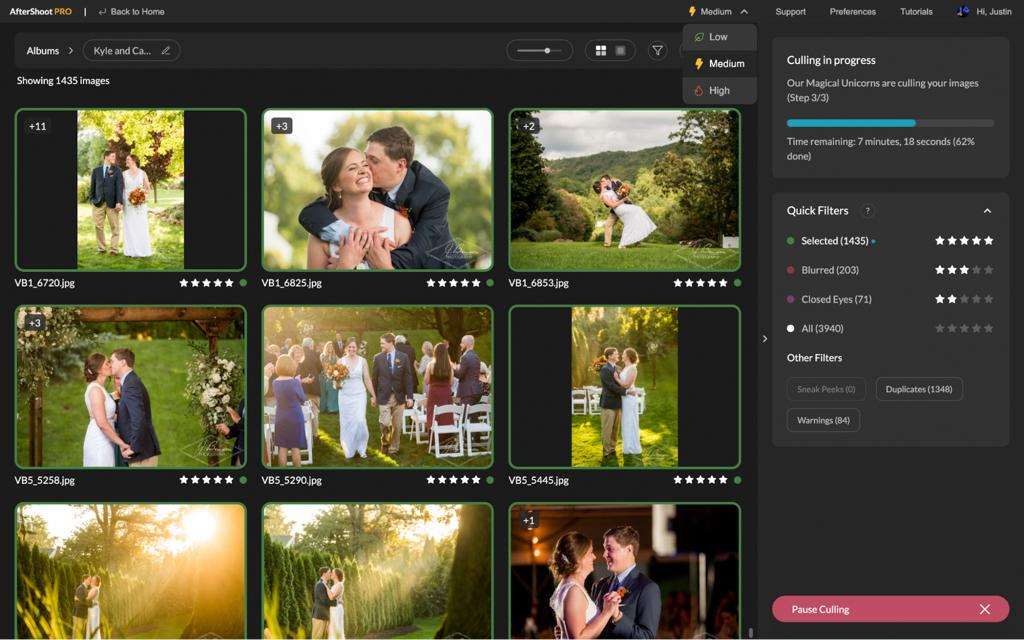
Whether you’re an experienced professional or new to AI-assisted workflows, AfterShoot offers one of the easiest learning curves in its category.
Installation & Setup
Getting started with AfterShoot is straightforward.
Step 1: Download and Install
Download the installer from the official AfterShoot website and complete the installation. The software is available for both Windows and macOS.
Step 2: Import Your Photos
Open AfterShoot and import a folder containing your RAW or JPEG images. The software begins preparing the gallery for AI analysis.
Step 3: Run AI Culling
Start the culling process. Depending on your hardware and gallery size, thousands of images can be analyzed in just a few minutes.
Step 4: Review AI Selections
Browse the recommended keepers, compare grouped images, and make any manual adjustments if needed.
Step 5: Export to Lightroom
Once you’re satisfied with the selections, export the chosen images directly to Adobe Lightroom Classic to begin editing.
The entire setup process is intuitive and requires very little configuration, making it easy to integrate AfterShoot into an existing photography workflow without disrupting established editing habits.
Performance Test
The true value of any AI photo culling software lies in how well it performs during real-world photography workflows. AfterShoot is designed to handle everything from small portrait sessions to weddings with several thousand RAW images, making speed and accuracy just as important as features.
Culling Speed
One of AfterShoot’s biggest strengths is its impressive processing speed. Because the software runs locally on your computer, it avoids the delays associated with uploading large galleries to the cloud.
In our evaluation, AfterShoot quickly analyzed large image libraries, grouped similar photos, and generated recommendations without slowing down the editing workflow. Even galleries containing several thousand RAW files were processed efficiently on modern hardware.
Processing speed naturally depends on factors such as:
- Computer processor (CPU)
- Available RAM
- SSD vs. HDD storage
- RAW file size
- Camera resolution
Photographers using recent Windows or macOS systems with SSD storage will experience the fastest results.
Performance with Large Wedding Galleries
Wedding photographers often return with 3,000–8,000 images from a single event. Reviewing each frame manually can easily consume half a day before editing even begins.
AfterShoot simplifies this process by automatically:
- Grouping burst sequences
- Identifying technically weak photos
- Highlighting the strongest image from similar sets
- Flagging blurry or out-of-focus frames
- Detecting closed eyes in portraits
Instead of reviewing every image individually, photographers can focus on the AI-selected keepers, dramatically reducing culling time.
Portrait Photography Workflow
Portrait sessions generally involve fewer images than weddings, but selecting the best expressions and sharpest eye focus remains essential.
AfterShoot performs particularly well with:
- Individual portraits
- Couples
- Family sessions
- Engagement photography
- Studio portraits
Its facial analysis helps photographers quickly identify the strongest expressions while removing technically weaker frames from consideration.
Event Photography Performance
Corporate events, conferences, concerts, and parties often involve continuous shooting under changing lighting conditions.
AfterShoot adapts well to these scenarios by evaluating:
- Motion blur
- Focus consistency
- Image sharpness
- Duplicate captures
- Burst sequences
This allows event photographers to move through large galleries much faster than with manual review alone.
AI Culling Accuracy
Speed is important, but accuracy ultimately determines whether AI culling software is worth trusting for client work.
AfterShoot consistently performs well when evaluating technical image quality, making it one of the most reliable AI culling solutions available.
Focus Detection
Sharp focus is critical in professional photography, particularly for portraits and weddings.
AfterShoot accurately identifies:
- Sharp subjects
- Missed autofocus
- Soft focus
- Slight focus inconsistencies
This reduces the need to zoom into every image during manual review.
Blur Detection
Motion blur and camera shake are common reasons photographers reject images.
The AI effectively identifies:
- Motion blur
- Camera shake
- Unintentional soft images
- Missed focus due to movement
By automatically flagging these images, photographers spend less time searching for unusable frames.
Duplicate & Burst Analysis
Modern cameras can capture 20–30 frames per second, creating long sequences of nearly identical images.
AfterShoot intelligently groups these bursts together and recommends the technically strongest frame, significantly reducing repetitive comparisons.
This feature alone can save hours during large wedding or sports galleries.
Facial Expression Analysis
Portrait photographers will appreciate AfterShoot’s ability to analyze facial details.
The software helps identify:
- Closed eyes
- Better smiles
- Cleaner expressions
- Stronger portrait selections
While AI cannot fully understand emotional storytelling, it performs well when comparing technically similar images.
False Positives & False Negatives
Like any AI tool, AfterShoot isn’t perfect.
Occasionally, it may:
- Recommend an image that isn’t the most emotionally impactful.
- Reject a creative frame with intentional motion blur.
- Favor technical sharpness over storytelling.
For this reason, photographers should always perform a quick final review before exporting their gallery.
Fortunately, these cases are relatively uncommon, and the software is best viewed as an intelligent assistant rather than a replacement for creative judgment.
AI Editing Review
In addition to AI culling, AfterShoot includes AI-powered photo editing designed to reduce repetitive adjustments.
Instead of relying on generic presets, the software learns your editing preferences by analyzing previously edited Lightroom catalogs.
Exposure
The AI generally produces balanced exposures that require only minor refinements for most images.
White Balance
AfterShoot performs well across various lighting conditions, delivering natural-looking white balance while preserving skin tones.
Mixed lighting situations may still require occasional manual adjustments.
Color Accuracy
Colors remain consistent across large galleries, making the software particularly useful for photographers who deliver hundreds of edited images from a single event.
Skin Tone Reproduction
Portrait and wedding photographers will appreciate the natural rendering of skin tones.
Rather than applying overly aggressive edits, the AI aims for clean and consistent results that can be fine-tuned if desired.
Batch Editing Consistency
One of the biggest advantages is consistency.
Because the AI learns from your editing history, entire galleries maintain a cohesive visual style without requiring repetitive manual adjustments.
For photographers with an established editing workflow, this can significantly reduce editing time while preserving brand consistency.
Lightroom Workflow
AfterShoot integrates smoothly into an existing Adobe Lightroom Classic workflow, requiring very few changes to established editing habits.
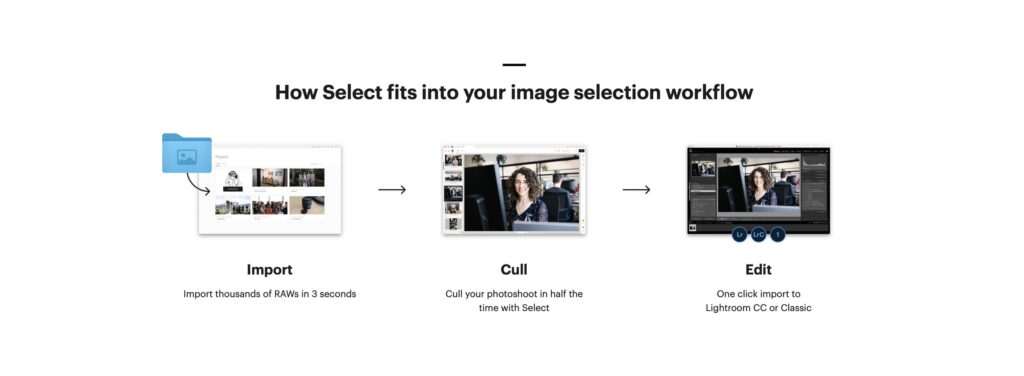
A typical workflow looks like this:
Step 1: Import Photos
Load your RAW images into AfterShoot immediately after a photoshoot.
Step 2: Run AI Culling
Allow the AI to analyze image quality, group similar photos, and recommend keepers.
Step 3: Review Recommendations
Quickly confirm or modify the AI’s selections based on your creative preferences.
Step 4: Export to Lightroom Classic
Transfer the selected images directly into Lightroom without unnecessary file management.
Step 5: Apply AI Editing
Use AfterShoot’s personalized AI editing or continue with your own Lightroom workflow.
Step 6: Final Adjustments & Export
Complete any creative refinements, export the finished gallery, and deliver it to your client.
This workflow is particularly beneficial for photographers who regularly process large numbers of images and want to reduce repetitive post-production work while maintaining full creative control.
Pros & Cons
Like any photography software, AfterShoot has its strengths and limitations. While it excels at AI-powered photo culling and workflow automation, understanding its drawbacks can help determine whether it’s the right fit for your photography business.
Pros
- Extremely fast AI-powered photo culling
- Offline processing keeps client photos private
- Excellent blur and focus detection
- Automatically groups duplicate and burst images
- Reliable closed-eye and facial expression detection
- Personalized AI editing profiles
- Seamless Adobe Lightroom Classic integration
- Supports RAW and JPEG files from major camera brands
- Clean, intuitive interface with minimal learning curve
- Saves hours of post-production time on every large gallery
Cons
- Subscription-based pricing may not suit occasional photographers
- AI editing still benefits from manual fine-tuning
- Creative or artistic image choices require human judgment
- Performance depends on your computer’s hardware
- No mobile version for reviewing galleries on the go
Pricing
AfterShoot offers flexible pricing designed for photographers with different workloads. Whether you’re a hobbyist handling occasional sessions or a professional studio processing multiple weddings every week, there’s a plan that fits most needs.
| Plan | Features | Best For |
|---|---|---|
| Free Trial | Full access for a limited period | Testing the software before purchasing |
| Monthly Subscription | AI culling, AI editing, regular updates | Freelancers and part-time photographers |
| Annual Subscription | Lower cost per month than monthly billing | Professional photographers with consistent workloads |
| Team Plans | Multi-user collaboration and centralized workflows | Photography studios and larger businesses |
Note: Pricing and features may change over time. Always check the official AfterShoot website for the latest subscription options, promotions, and licensing details.
Who Should Buy AfterShoot?
Although AfterShoot works well for nearly any photographer, it delivers the greatest value for professionals who regularly process large numbers of images.
Wedding Photographers
Highly Recommended ⭐⭐⭐⭐⭐
Wedding photographers often return home with thousands of RAW files. AfterShoot dramatically reduces culling time, making it easier to deliver galleries faster while maintaining consistent quality.
Portrait Photographers
Excellent Choice ⭐⭐⭐⭐⭐
Portrait sessions require careful attention to eye sharpness and facial expressions. AfterShoot’s AI helps identify the strongest frames while reducing repetitive comparisons.
Event Photographers
Highly Recommended ⭐⭐⭐⭐⭐
Corporate events, conferences, and celebrations generate hundreds or thousands of images. AI-assisted culling helps photographers organize galleries efficiently without sacrificing accuracy.
Sports & Wildlife Photographers
Very Good ⭐⭐⭐⭐☆
Burst shooting creates many nearly identical frames. AfterShoot’s duplicate grouping and focus detection simplify selecting the sharpest action shots.
Beginner Photographers
Recommended ⭐⭐⭐⭐☆
New photographers can benefit from faster workflows and improved organization, though the subscription cost may be harder to justify if shooting only occasionally.
Professional Studios
Excellent Choice ⭐⭐⭐⭐⭐
Studios managing multiple photographers and large client volumes can save significant time through automated culling and AI-assisted editing.
AfterShoot vs Narrative Select
| Feature | AfterShoot | Narrative Select |
|---|---|---|
| AI Culling | ⭐⭐⭐⭐⭐ | ⭐⭐⭐⭐⭐ |
| AI Editing | ✔ Yes | ✖ No |
| Offline Processing | ✔ Yes | ✔ Yes |
| Face Analysis | Very Good | Excellent |
| Lightroom Integration | ✔ Yes | ✔ Yes |
| Ease of Use | Excellent | Excellent |
| Best For | Weddings & Events | Portraits & Weddings |
Verdict
Choose AfterShoot if you want both AI culling and AI editing in one platform.
Choose Narrative Select if your highest priority is advanced facial analysis during portrait selection.
AfterShoot vs Imagen
| Feature | AfterShoot | Imagen |
|---|---|---|
| AI Culling | ✔ Yes | ✔ Yes |
| AI Editing | ✔ Yes | ✔ Yes |
| Processing | Local Computer | Cloud-Based |
| Internet Required | No | Yes |
| Privacy | Excellent | Good |
| Lightroom Integration | ✔ Yes | ✔ Yes |
| Best For | Offline Workflows | High-Volume Cloud Editing |
Verdict
AfterShoot is ideal for photographers who prefer offline processing and complete control over their files.
Imagen is better suited to photographers comfortable with cloud-based workflows and large-scale editing automation.
AfterShoot vs FilterPixel
| Feature | AfterShoot | FilterPixel |
|---|---|---|
| AI Culling | Excellent | Very Good |
| AI Editing | Excellent | Good |
| Offline Processing | ✔ Yes | ✔ Yes |
| Ease of Use | Excellent | Very Good |
| Lightroom Integration | ✔ Yes | ✔ Yes |
| Overall Value | Excellent | Very Good |
Verdict
AfterShoot offers a more mature ecosystem with stronger AI capabilities, while FilterPixel provides excellent value for photographers looking for a more budget-friendly alternative.
AfterShoot vs Adobe Lightroom
| Feature | AfterShoot | Lightroom |
|---|---|---|
| AI Photo Culling | ✔ Dedicated | ✖ Limited |
| AI Editing | ✔ Yes | ✔ Excellent |
| Blur Detection | ✔ Automatic | Manual |
| Duplicate Detection | ✔ Automatic | Manual |
| Image Selection | AI Assisted | Manual |
| Workflow Speed | Excellent | Moderate |
Verdict
Adobe Lightroom remains one of the industry’s best photo editing applications, but it isn’t designed for automated AI photo culling. Combining AfterShoot with Lightroom creates a faster and more efficient workflow than relying on Lightroom alone.
Best Alternatives to AfterShoot
If AfterShoot doesn’t perfectly match your workflow or budget, these alternatives are worth considering.
Narrative Select
Ideal for photographers who want detailed facial analysis and complete control over image selection without automated editing.
Imagen
A powerful cloud-based platform that combines AI culling with personalized AI editing for high-volume professional workflows.
FilterPixel
A budget-friendly solution offering solid AI culling and editing capabilities for freelancers, enthusiasts, and small photography businesses.
Photo Mechanic
An industry favorite for fast image browsing and metadata management. While it doesn’t use AI for culling, it remains one of the fastest manual image review tools available.
Adobe Lightroom Classic
Perfect for photographers who already subscribe to Adobe’s Photography Plan and need industry-leading editing tools, though pairing it with dedicated AI culling software offers a much faster overall workflow.
Frequently Asked Questions
Is AfterShoot worth it?
Yes. AfterShoot is one of the best investments for photographers who regularly process large image galleries. Its AI-powered culling can reduce hours of manual work by automatically identifying sharp images, grouping duplicates, and flagging photos with blur or closed eyes.
Does AfterShoot work offline?
Yes. One of AfterShoot’s biggest advantages is its offline AI processing. Unlike many cloud-based competitors, it analyzes your images directly on your computer, improving both speed and privacy while eliminating the need to upload large RAW files.
Can AfterShoot edit photos?
Yes. In addition to AI-powered culling, AfterShoot offers AI-assisted photo editing. The software learns your editing style from previous Lightroom catalogs and applies consistent adjustments to new galleries, helping reduce repetitive editing tasks.
Does AfterShoot support RAW files?
Yes. AfterShoot supports RAW files from major camera manufacturers, including Canon, Nikon, Sony, Fujifilm, Panasonic, Leica, OM System, Pentax, and many others. JPEG files are also supported.
Is AfterShoot better than Lightroom for culling?
Yes. Adobe Lightroom is an outstanding photo editor, but it doesn’t provide dedicated AI photo culling. AfterShoot automatically detects blur, focus issues, duplicate images, and closed eyes, making the image selection process significantly faster.
Does AfterShoot replace Lightroom?
No. AfterShoot complements Lightroom rather than replacing it. It handles image selection and optional AI editing, while Lightroom remains the primary tool for advanced editing, catalog management, and final image exports.
Is AfterShoot safe for client photos?
Yes. Since AfterShoot processes images locally on your computer, your client photos remain on your device. This makes it a strong choice for photographers who prioritize privacy and data security.
Can beginners use AfterShoot?
Absolutely. The software features a clean, intuitive interface that makes AI-assisted culling accessible even for photographers who are new to workflow automation.
Which photographers benefit most from AfterShoot?
Wedding, portrait, event, sports, and commercial photographers gain the most value because they typically work with hundreds or thousands of images per assignment.
Is AfterShoot better than Narrative Select?
It depends on your workflow. AfterShoot is the better all-around solution because it combines AI culling with AI editing. Narrative Select excels in facial analysis and is ideal for photographers who want complete manual control over final image selection.
Does AfterShoot speed up editing?
Yes. By automatically selecting the best photos and applying AI-assisted edits, AfterShoot reduces the amount of manual work required before and during editing, helping photographers deliver galleries faster.
Is AfterShoot worth the subscription cost?
For photographers who process large galleries regularly, the time saved often outweighs the subscription cost. Saving just a few hours on every project can quickly justify the investment while improving productivity and client turnaround times.
Final Verdict
AfterShoot has established itself as one of the most capable AI workflow tools available for photographers. Its combination of intelligent photo culling, offline processing, Lightroom integration, and AI-assisted editing makes it an excellent choice for professionals looking to streamline post-production without sacrificing quality.
What sets AfterShoot apart is its ability to automate repetitive tasks while still leaving creative decisions in the photographer’s hands. Instead of replacing your expertise, it works as a reliable assistant that handles the technical aspects of image selection, allowing you to focus on storytelling and editing.
Our Ratings
- Best Overall AI Photo Culling Software: ⭐⭐⭐⭐⭐
- Ease of Use: ⭐⭐⭐⭐⭐
- AI Accuracy: ⭐⭐⭐⭐⭐
- Workflow Integration: ⭐⭐⭐⭐⭐
- Value for Professional Photographers: ⭐⭐⭐⭐⭐
Who Should Buy It?
We confidently recommend AfterShoot for:
- Wedding photographers
- Portrait photographers
- Event photographers
- Commercial photographers
- High-volume professionals
- Photography studios
- Anyone looking to save hours on photo selection and editing
If you’re searching for software that can dramatically improve your workflow while keeping your files private through offline processing, AfterShoot is one of the best options currently available.
Why Trust The Candid Shoot?
At The Candid Shoot, we help photographers make informed decisions by publishing detailed reviews, workflow guides, camera recommendations, and AI photography resources.
Our software reviews are based on careful feature analysis, workflow evaluation, official product documentation, and real-world photography use cases. We focus on practical insights that matter to photographers, including ease of use, performance, integration, pricing, and long-term value.
Because AI photography tools evolve quickly, we regularly review and update our content to reflect new features, pricing changes, and workflow improvements, ensuring our readers receive accurate and current recommendations.
Related Articles
Expand your AI photography toolkit with these guides:
- AI Photography Guide: Powerful Tools & Tips
- Best AI Photo Culling Software for Photographers
- Best AI Photo Editing Software
- Lightroom AI vs Photoshop AI
- Best AI Tools for Photographers
Continue Learning About AI Photography
If you’re exploring how artificial intelligence is transforming photography, don’t stop with a single tool.
Our AI Photography Guide: Powerful Tools & Tips explains how AI is changing every stage of the photography workflow—from intelligent photo culling and automated editing to image enhancement, background removal, portrait retouching, upscaling, and workflow automation.
Whether you’re just starting with AI or looking to optimize your existing workflow, this pillar guide will help you discover the best AI tools for every stage of your photography process.
👉 Continue reading:
Recommended Official Resources
For the latest software updates, supported camera models, pricing, and documentation, visit these official resources:
Checking the official documentation ensures you have the most up-to-date information before choosing the software that best fits your workflow.
Want to explore more AI photography tools? Visit our AI Photography Guide to discover the best AI software for editing, culling, image enhancement, background removal, and workflow automation. It’s the perfect starting point for photographers looking to build a faster and smarter editing workflow.





Leave a Reply